
Overview
Guest List Collaborators
Get guest list input from the partners, deal leads, and colleagues who know your guests best. They answer from an email link on their phone. You decide what changes on your guest list in Gatsby.
The people who know your guests rarely live in Gatsby.
The partner who owns half the relationships on your dinner list is between board meetings. Your deal lead reads email on the way to the airport. Getting their input usually means exporting a spreadsheet, chasing replies, and retyping their notes into the guest list by hand. Guest List Collaborators sends them a short request they finish on their phone, and brings their answers back into Gatsby for you to act on.
One link, a few minutes, any phone
Your collaborator gets an email, taps once to sign in, and works through the guests you picked. No training and no spreadsheet. Their progress saves as they go.
They advise, you decide
Their answers come back to you as a response you review. Nothing on your guest list changes until you apply it, and you choose which guest details they see in the first place.
Where to find it. Open an event’s Guests tab and click Guest List Collaborators in the toolbar. You can also select guests and choose Request Review from the bar that appears, or use Request Review in a section’s menu to start with that section’s guests.
Three kinds of request
Section titled “Three kinds of request”Pick the one that matches where your list is.
Review selected guests is for a group that needs the relationship owner’s judgment. Your collaborator marks each person Recommend, Leave out, or Not sure, and can add context on anyone.
Check the guest list is for a long list that’s nearly right. Your collaborator sees the whole list, flags only the guests they have concerns about, and adds context where it helps. Everyone else needs no action.
Suggest guests is for a list that’s empty or has gaps. Your collaborator adds people one at a time, or attaches a spreadsheet of names for you to import.
Which request to use
| Your situation | Request | What comes back |
|---|---|---|
| A handful of guests need a yes or no from the person who knows them | Review selected guests | Recommend, Leave out, or Not sure on each guest, with optional context |
| A long list where most people are fine | Check the guest list | Flags on the guests they have concerns about, with optional context |
| No list yet, or you know there are gaps | Suggest guests | New people with a reason for each, plus any spreadsheets they attach |
Check the guest list needs at least one guest on the event before you can choose it.
Sending a request
Section titled “Sending a request”Setup takes four steps: who and what, which guests, your note, and a final review where you choose what happens when they submit. Select Guests only appears for Review selected guests.
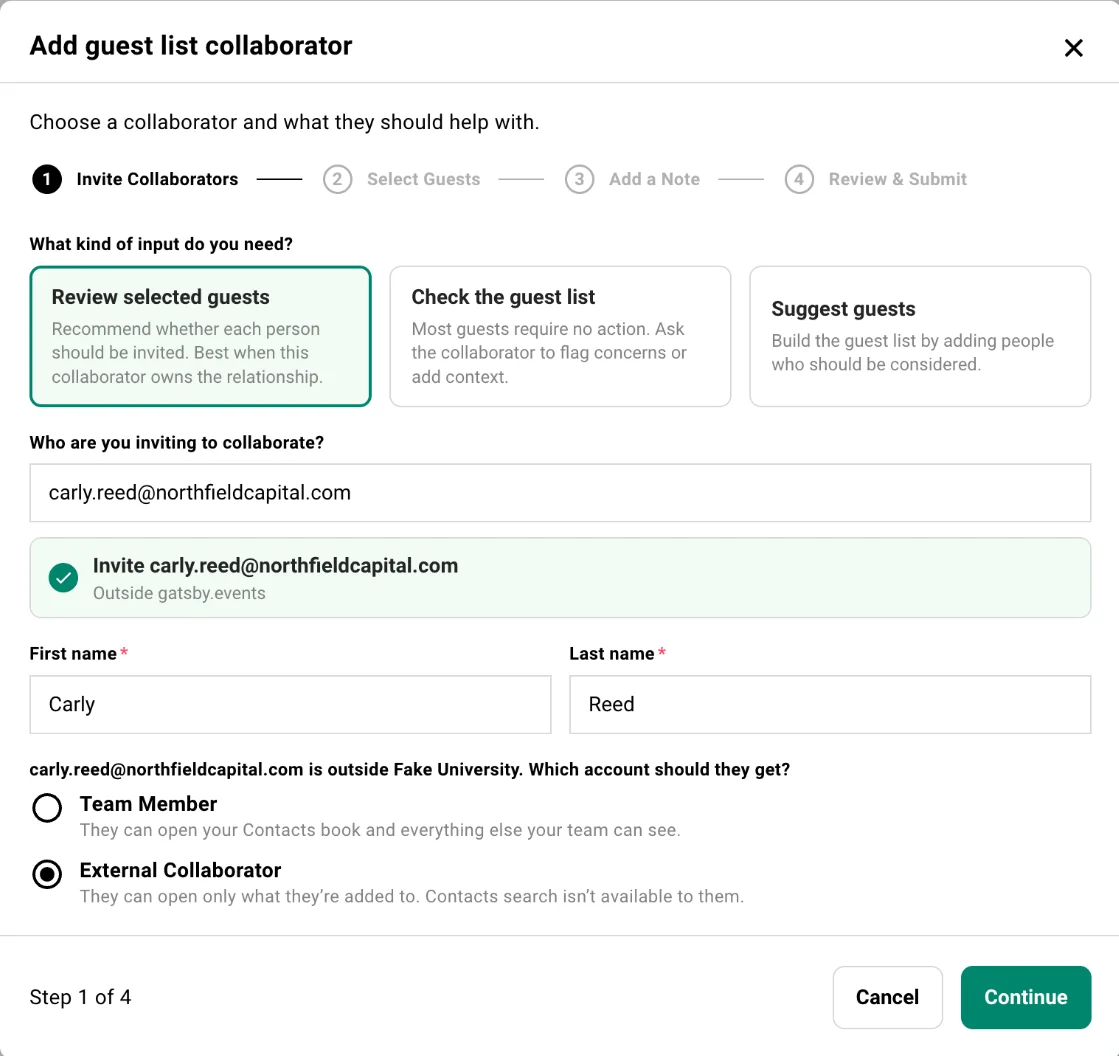
You can ask anyone already in your org, or type an email address for someone who isn’t. A new address on your org’s email domain gets a Team Member account. An address outside your domain asks you to choose between Team Member and External Collaborator, with the difference spelled out beside each.
Collaborators don’t become event collaborators. They can open the request you sent them and nothing else on the event.
How to send a guest list request
-
On the event’s Guests tab, click Guest List Collaborators. If the event already has requests, click Add collaborator at the bottom of the panel.
-
Under What kind of input do you need?, choose Review selected guests, Check the guest list, or Suggest guests.
-
Under Who are you inviting to collaborate?, search by name or type a full email address, then select the person.
For someone new, add their First name and Last name. If their address is outside your org’s domain, choose Team Member or External Collaborator.
-
Click Continue. For Review selected guests, check the guests you want reviewed and click Continue again.
-
Write Your note to your collaborator. It’s the first thing they read, so say what you need and why their input matters. A starting note is filled in for you. Add a Deadline if you have one, then click Continue.
-
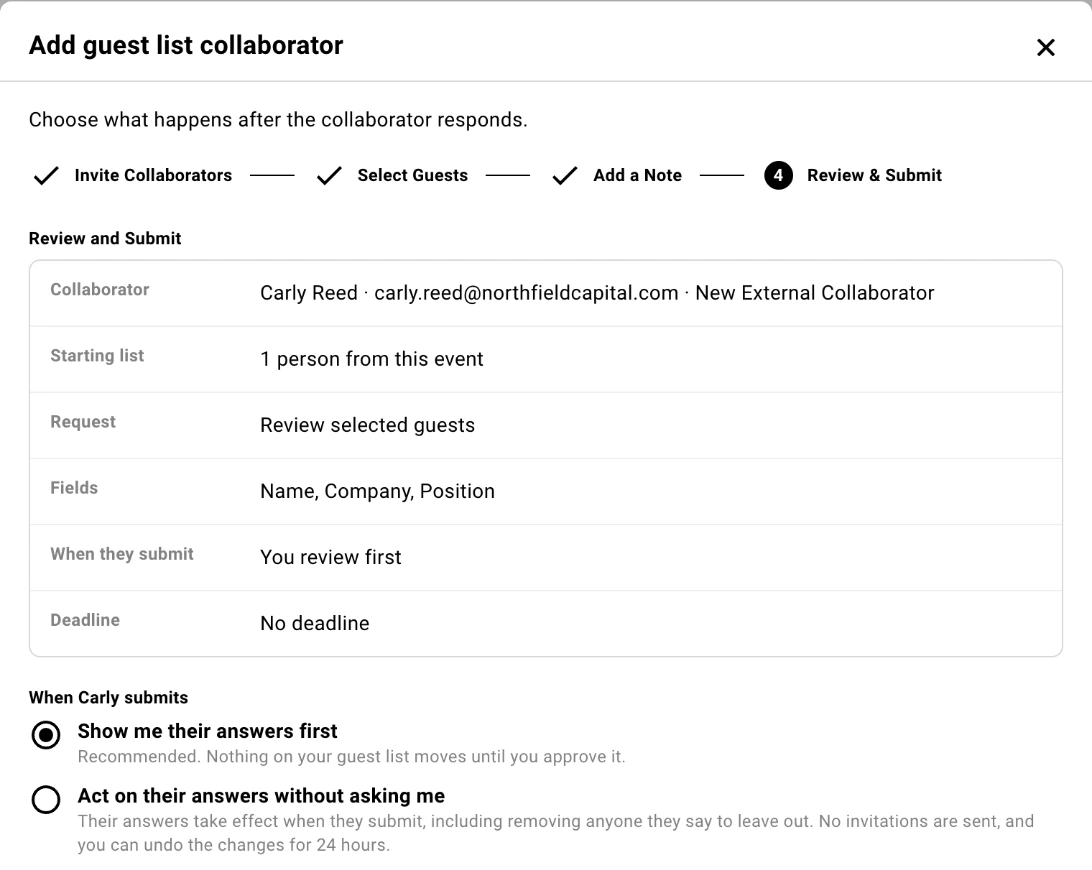
On Review & Submit, check the recap, choose what happens When they submit, and adjust the fields they’ll see. Click Send request.
They get an email right away. The request appears in the panel under Awaiting collaborators.
Choosing what your collaborator sees
For Review selected guests and Check the guest list, your collaborator sees each guest’s name plus the fields listed under Fields shown to your collaborator. Click Add field to share more, including your own custom columns. Share only what helps with the decision.
If your org hides guest email addresses from External Collaborators, an External Collaborator doesn’t see guest emails even when you add the email field. See Team & Permissions.
Suggest guests shows no guest list at all. When an External Collaborator types an email, they’re told only whether that person is already on the guest list. A Team Member also sees the name and company of a matching contact.
For Suggest guests sent to a Team Member, your collaborator can also search your Contacts so they pick people you already know instead of retyping them. This is on by default and you can turn it off in the last step. External Collaborators never get Contacts search.
Deadlines and reminders
A deadline is optional and must fall before the event. It tells your collaborator when you need an answer. It doesn’t close the request.
If the deadline is at least two days away, Gatsby emails your collaborator a reminder the day before, as long as they haven’t responded.
To nudge someone yourself, click Remind beside their request in the panel. You can remind the same person once every 24 hours. Each reminder carries a new link, and the link in earlier emails stops working.
Who can send requests
Anyone with access to the event can send a request to people already in your org, except External Collaborators.
Inviting someone new also takes permission to add people to your org. Without it, Gatsby tells you an admin has to add that person first. See Team & Permissions.
Existing External Collaborators are hidden from the picker until you turn on Include External Collaborators in the first step.
Answering from the email
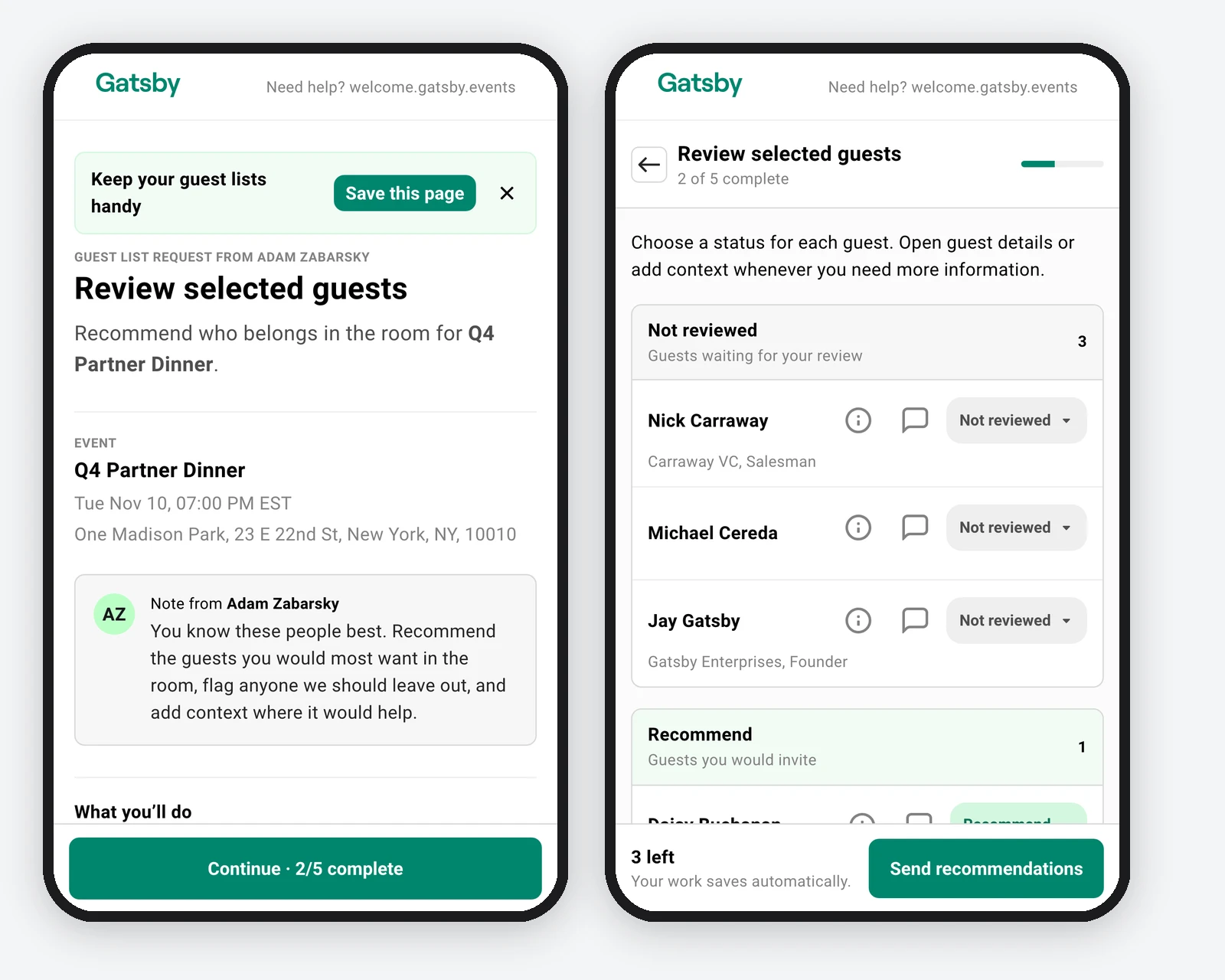
Section titled “Answering from the email”The request opens with your note, the event, and what you’re asking for. Your collaborator works through the guests one screen at a time, opens guest details when they need a reminder of who someone is, and adds context the team should know. Their work saves automatically, so they can stop in a cab and finish at their desk.
When they’re done, they send it back with an optional note about the list as a whole. Until you act on it, they can reopen the request and send changes.
A page called Your guest lists collects every request from your org that’s waiting on them, across all your events. A request leaves that page once they send it, and comes back if you send guests back to them.
How signing in works
The button in the email signs your collaborator in with one click when all of these are true:
- The request is still open.
- The email was sent or re-sent in the last 7 days.
- None of their orgs has switched off one-click links or requires Okta.
Otherwise they sign in the usual way and land back on the request. The email tells them which to expect. A one-click sign-in lasts 30 minutes.
If the browser is already signed in as someone else, the page shows who the request is for and offers Sign out and continue.
Reviewing selected guests
Guests are grouped by status: Not reviewed, Recommend, Leave out, and Not sure. Your collaborator sets each one from the status menu on the guest’s row and can undo a move right away.
The details button opens the fields you shared. The comment button opens Add context, where they write a note for the team.
Send recommendations shows a summary before it sends. They can send with guests still unreviewed, and Gatsby warns them first.
Checking the guest list
Your collaborator sees the full list and taps Flag on anyone they have a concern about. Context is separate, so they can explain a flag or leave a note on someone they haven’t flagged.
They finish with Send feedback, even if they flagged nobody. That way you can tell “all clear” apart from “never looked.”
Suggesting guests
Your collaborator clicks Add guests and fills in an email, first name, last name, company, and Why should they be considered? As they type an email, Gatsby tells them if that person is already a contact or already on the guest list. Keep this open to add another lets them add several in a row.
If they’d rather send a list, Attach a spreadsheet takes up to 10 CSV or Excel files. Gatsby doesn’t import these on its own. They come to you as attachments you can open in the importer.
They finish with Send suggestions.
The emails your collaborator gets
| When | |
|---|---|
| The request | When you send it. The subject names you and the event. |
| A reminder | When you click Remind, and once automatically the day before a deadline if they haven’t responded |
| A request for more context | When you send guests back to them |
| A cancellation | When you cancel their request |
Reviewing a response
Section titled “Reviewing a response”When a collaborator sends their answers, you get an email and the request moves to Ready for you in the panel. Click Review response to see each guest with their verdict and context, the people they suggested, and their note about the list.
Click Apply to make the changes. The button shows how many changes it will make. Applying a response never sends invitations. If you change your mind, you have 24 hours to undo it.
For Review selected guests, you can apply part of a response. Tick the guests you agree with and click Apply, and only their answers take effect. The rest stay waiting in the response until you apply them or send them back. With no guests ticked, Apply covers every guest still waiting.
What applying a response does
| Collaborator’s answer | What happens on your guest list |
|---|---|
| Recommend | The guest is marked endorsed in the Collaborator input column |
| Leave out | The guest is removed from the guest list |
| Not sure | Nothing changes |
| A flag | The guest is marked flagged in the Collaborator input column, with the note |
| A suggested person | They’re added to the guest list, with Guest list request as their Guest Source |
When nothing in a response would change the list, the button reads Mark as done instead.
How to undo a response
Undo reverses your most recent apply on that response. If you applied a response in two parts, it reverses only the second.
-
Under Completed in the panel, click View response beside the response.
-
Click the undo button, which names the number of changes, for example Undo 3 changes.
-
If the apply removed guests, Gatsby asks you to confirm. Check I understand and click Undo changes.
Right after you apply, the confirmation message also has an Undo button, unless the apply removed guests. After a partial apply, while other guests are still waiting, that message is the only place to undo.
Removed guests return to this event only. They aren’t added back to its sessions, and anyone who came as another guest’s plus-one returns as a separate guest.
Undo is available for 24 hours. Gatsby won’t undo an apply when:
- The event has started.
- Another response was applied on the same event after it.
- One of the affected guests has changed since.
- You sent guests in that response back to your collaborator.
- Your collaborator has another open request on the event.
- One of its guests is now in someone else’s open review.
- A contact match from it has been resolved.
When undo isn’t available, change the guest list directly instead.
Applying answers automatically
On the last setup step, under When your collaborator submits, you can choose to have their answers take effect without a review step.
- For Review selected guests and Check the guest list, choose Act on their answers without asking me. Review answers apply when they submit, including removing anyone they marked Leave out. Check flags show on the guest list when they submit.
- For Suggest guests, choose Add their suggestions for me. People who are clearly new, or who clearly match a contact you already have, join the guest list. Anyone Gatsby is unsure about waits for you.
If your collaborator attaches a spreadsheet, nothing applies on its own. The whole response waits for you under Ready for you.
No invitations go out either way, and you can still undo for 24 hours. Undoing an automatic apply switches that request to review first, so a resubmission waits for you. The default is Show me their answers first, or Show me every suggestion first for Suggest guests.
Asking for more context
For Review selected guests, you can send specific guests back for more detail. Tick them in the response, click Request changes, and write a note saying what you need. This works before you apply anything, or after a partial apply for the guests still waiting. Sending guests back means you can’t undo an earlier partial apply on that response.
Your collaborator gets an email and can update only the guests you sent back. Their other answers stay as they were. When they resubmit, the request returns to Ready for you.
When a suggestion matches an existing contact
If a suggested person’s email matches a contact you already have, but the name doesn’t, Gatsby holds that one person and adds the rest. The panel shows Resolve a possible contact match.
Open it to compare the two, then choose Use Gatsby contact to add your existing contact to the guest list, or Don’t add them. Gatsby never creates a duplicate contact or overwrites the one you have.
Importing an attached spreadsheet
Spreadsheets your collaborator attached appear in their response. Click Open in importer to run the usual import with that file loaded. Nothing from the file reaches your guest list until you finish the import.
Seeing input on the guest list
Section titled “Seeing input on the guest list”Applied answers show in a Collaborator input column, so the next time you open the list you can see that your partner endorsed someone, or that a colleague flagged a guest and why. Endorsements from several people collect on the same guest. A flag shows ahead of an endorsement.
The column appears in your current view the first time you send a request on an event, unless that view has a public link.
About the Collaborator input column
Each cell reads Endorsed by or Flagged by, with the person’s name and the date. Hover over it to see every endorsement and flag on that guest, including flag notes.
The column is included when you export the guest list. It’s hidden from External Collaborators and from public links. It can’t be sorted or filtered.
Managing open requests
The panel groups every request on the event:
- Ready for you: responses waiting on you, and contact matches to resolve.
- Awaiting collaborators: requests not yet answered, marked Not opened, Opened, or Sent back.
- Completed: responses you’ve already handled.
To withdraw a request, open the menu beside it under Awaiting collaborators or Ready for you and choose Cancel Request. Check I understand to confirm. Your collaborator gets an email, the link stops working, and nothing they sent is used. Cancelling can’t be undone.
Common Questions
Section titled “Common Questions” Can I send one request to several people?
No. Each request goes to one person, so reminders, access, and cancelling are per person. Send a separate request to each collaborator. An event can have as many open requests as you need, but only one per person at a time.
Can two people review the same guest?
Not in Review selected guests. A guest in someone’s open review shows as In that person’s open request and can’t be picked until that request is applied or cancelled. Check the guest list has no such limit.
Does my collaborator see my whole guest list?
Only for Check the guest list. Review selected guests shows only the guests you picked. Both show only names and the fields you chose. Suggest guests shows no guests at all.
Do collaborators become event collaborators?
No. A collaborator gets a Gatsby account so they can sign in, as a Team Member or an External Collaborator, but they aren’t added to the event. A Team Member can still open what your team can see across Gatsby, including Contacts. An External Collaborator can open only what they’re added to.
Does applying a response invite anyone?
No. Applying adds, removes, and marks guests on your list. Invitations go out only when you send them.
What happens when the event starts?
You can’t send new requests once an event has started, and open requests close for editing. You can still read responses, but you can’t apply them or send guests back. Request links stop working entirely 30 days after the event.
My collaborator says the link doesn't work.
The page they see explains why. This link no longer works means a newer email replaced it, so they should use the latest one, or you can click Remind to send a fresh link. This request was cancelled and This request has ended mean the request is closed.
Can my collaborator change their answers after sending?
Yes, until you act on the response. Once you apply it or send guests back, they can still view what they sent, and they can update any guests you sent back.