
Overview
Newsletter Subscribers
Build a newsletter's list from an event's guests, a Gatsby list, a tag, a filtered selection, a CSV, or one person at a time, and see every subscription on the contact record itself.
Your guest lists are already your audience.
The people who came to your dinners last year are in Gatsby with their titles, their firms, and their history. Pull them into a newsletter from an event, a list, a tag, or a filtered selection of exactly the people you want. Change someone’s email later and the next campaign follows them to the new address.
Six ways in
From an event’s guests, a Gatsby list, a tag, a selection on any guest list or the Contacts page, a CSV, or typed in one at a time.
Built to be searched
The list shows the 25 most recent and search returns the top 50 matches. It stays fast at 250,000 rows.
Two statuses per person
Whether they want it, and whether their address can receive it. One can be true without the other.
Two places to look
Section titled “Two places to look”Inside a newsletter, the Subscribers tab shows who receives that one publication, and is where you add people to it.
Across all of them, the Subscribers tab at the top of the Newsletters area shows every subscription in your organization, with a Newsletter column and a picker to narrow to one. Adding is disabled here until you pick a newsletter, because a subscriber has to be subscribed to something in particular.
Both lists work the same way: the 25 most recently added, a count of the full total underneath, and a search that returns the top 50 matches.
From what you already have
Section titled “From what you already have” From a Gatsby event
-
Open the newsletter and go to Subscribers.
-
Click + Add Subscribers.
-
Pick the From Event tab.
-
Search your events and choose one.
-
Add subscribers.
This is how most newsletters start. You ran the dinner, forty people came, and now they should hear from you between events.
Every guest on that event, whatever they replied. Accepted, declined, pending and not-yet-invited all come across, as long as they have an email address. Picking your Q1 dinner subscribes the twelve people who turned it down alongside the forty who came.
That’s usually not what you want. If the audience is “people who actually attended,” filter the guest list to them and add the selection instead. See From a selection below.
The tab tells you the number before you commit, as 312 contacts with an email will be added. Contacts with no email are left out, because there’s nothing to send to.
From a selection
-
Open an event’s Guests tab, a list’s Members tab, or your Contacts page.
-
Narrow it to the people you want with filters or search, then select their rows. Select all takes everyone your filters match.
-
Click Add to Newsletter in the action bar.
-
Pick a newsletter. Each one shows its current subscriber count, and the box at the top searches by name.
-
Check the confirmation and click Add [number] contacts.
This is the route for an audience you can describe but haven’t saved anywhere. Filter your Q1 dinner to the guests marked attended, select them, and the forty who came are added without the twelve who declined. On the Contacts page, filter to a title or a firm and select all.
Nothing is written until you confirm. The second screen names the newsletter and the count, and the button repeats the number. Back returns you to the picker.
Anyone already on that newsletter is skipped, and so is anyone without a valid email address. Someone who opted out earlier comes in as unsubscribed and stays that way, so a selection can’t quietly put them back on the list.
A selection of more than 500 people runs in the background while you keep working. The message that it started links to the newsletter’s Subscribers tab, which holds the progress bar and Stop. When it finishes, a second message gives the count added and skipped, with a link to the newsletter.
A few things to know:
- One newsletter per add. Archived newsletters don’t appear in the picker.
- It’s a one-time copy, like every other route. Someone added to the guest list tomorrow isn’t added to the newsletter.
- One subscriber import runs at a time. Start another while one is still going and Gatsby asks you to wait for it to finish.
- Add to Newsletter appears for Admins and Team Members. External Collaborators don’t see it.
From a Gatsby list
Same modal, From List tab. Search your Gatsby lists and choose one.
This is the closest thing to a standing audience Gatsby has. A contact list is ongoing and has no date, which is the same shape as a newsletter audience. See Contact Lists.
You get the whole list, and adding from it is a one-time copy of who’s on it rather than a live link. Someone added to the list next month isn’t added to the newsletter.
By tag
Same modal, By tag tab. Pick one tag and everyone carrying it who has an email address is added. The dropdown opens on the tags most of your contacts carry and narrows as you type.
Useful when the audience is a category rather than a list or an event: everyone tagged LP, or Portfolio Founder, or Alumni.
If the tag doesn’t exist yet, you add it on the contact rather than here. Open a contact and use its Tags field, or select several people on a guest list and use Adjust Tags in the action bar to label them all at once. See Organizing Contacts.
Worth getting right the first time: a tag can’t be renamed or merged once it exists. If you’re creating one to drive a newsletter audience, pick the name you’ll still want a year from now.
One at a time
Same modal, Add manually tab, which is where it opens. Enter a Name and an Email, and use + Add another for more rows before saving.
For the one person who asked to be added after a meeting.
From a CSV
Section titled “From a CSV” Importing a file
-
Open the newsletter and go to Subscribers.
-
Click Import CSV. This is its own button, next to + Add Subscribers.
-
Check your file has a name column and an email column. Names can be a single Name or Full Name column, or separate First Name and Last Name columns. Download the example file from the modal if you want the exact shape.
-
Drag the file in, or Choose File.
This is Gatsby’s own contact importer with a subscribing step on the end, so it dedupes the way the rest of the platform does. See Import & Export.
Email is the identifier, so importing the same people twice doesn’t duplicate them. An address already in Gatsby matches its existing contact and the import enriches that record rather than creating a second one. Where your spreadsheet and Gatsby disagree on a field, the wizard puts both values side by side and you pick the winner, one field at a time or across the whole import at once. An address with no match gets a new contact.
That makes a file safe to re-run. If some rows fail, or another subscriber import is still finishing, Gatsby says so and tells you to run the same CSV again, skipping anyone already added.
One thing to watch: a contact imported without a usable email address lands in your contact book but can’t be subscribed. Gatsby reports the count rather than leaving you to find out at send time. Large files subscribe in the background, so you can keep working while it runs.
What happens to people who already opted out
They stay out. An address that previously unsubscribed comes in as unsubscribed, no matter what the CSV says, and no matter how it got into the file.
This is worth understanding before you import a list from another tool. Re-uploading a spreadsheet doesn’t reset anyone’s opt-out, and it shouldn’t: an unsubscribe is the reader’s decision, not a data field.
Importing a list of people who never asked to hear from you is where marketing email goes wrong, and no amount of product tooling fixes it. Bought and scraped lists bounce hard, get reported as spam, and take your sending reputation down with them.
Subscription status
Section titled “Subscription status”Whether this person wants this newsletter.
Subscribed. They’re on the list and the next campaign goes to them.
Unsubscribed. They’re not, and future campaigns skip them. They stay on the list, visibly, rather than vanishing. A record of who opted out and when is the thing you need if anyone ever asks.
The filter at the top of the list carries both values plus All, with a live count and percentage next to each. Filtering to Unsubscribed and seeing the number climb after a particular campaign tells you something about that campaign.
Deliverability status
Section titled “Deliverability status”Whether this address can actually receive mail. Same words the campaign report uses, so the two surfaces agree.
| Status | What it means |
|---|---|
| No Delivery Yet | Nothing has been sent to them yet. New subscribers sit here until the first campaign. |
| Healthy | Mail is landing. |
| Bounced | Their mail server rejected the message permanently. The address is gone, or it refuses mail. |
| Blocked | Refused temporarily by the receiving server. Three refusals in a row and Gatsby stops sending to the address. |
| Dropped | Never sent. Usually the address had already bounced, unsubscribed, or reported spam. Sometimes a technical error. |
The Deliverability Status filter carries all five plus All, again with counts.
Filter to Bounced after a campaign and you have your list-hygiene work for the week in one screen. A handful of dead addresses is normal. A wall of them means the list came from somewhere it shouldn’t have.
Finding and changing one person
Section titled “Finding and changing one person” Search
The box at the top searches by email or name, and returns the top 50 matches. Reach for it first. The list itself only ever shows the 25 most recent, so search is how you reach anyone else.
The row menu
Clicking anywhere on the row opens the contact panel on its Newsletters tab. The menu does the same thing under View subscriber, and adds Remove from list, which takes them off this newsletter.
Removing in bulk
Select rows with the checkboxes and act on the selection. Combine it with the filters: narrow to Bounced, select, remove.
The Newsletters tab
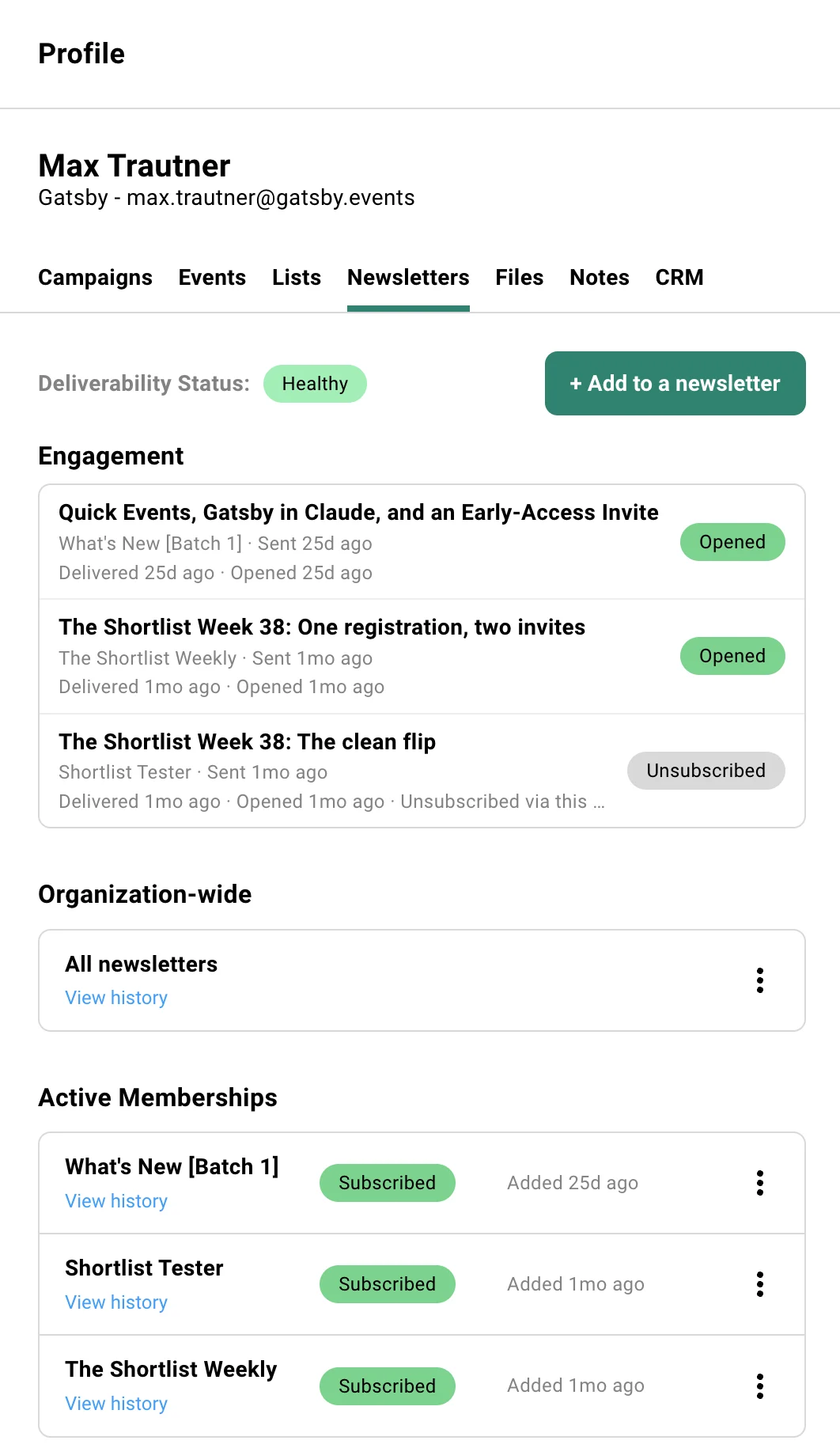
Section titled “The Newsletters tab”Open any contact and there’s a Newsletters tab alongside Campaigns, Events, Lists, Groups, Files, Notes and CRM. Four things on it:
Deliverability status
At the top, the same status the subscriber list shows, for this person. Next to it, + Add to a newsletter.
A contact who isn’t subscribed to anything still has the tab. It just shows the empty state and the button.
Engagement
Every campaign this person has received, most recent first. Each one names the newsletter, when it was sent, when it was delivered, when they opened it, and where they got to: Opened, Delivered, or a failure state.
This is where you check whether you’ve actually been reaching someone, which is a more useful thing to know before a meeting with them than your org-wide open rate.
Organization-wide
One row covering every newsletter you send. View history shows what’s happened at that level, and the row menu holds Unsubscribe from all newsletters.
Use this when someone tells you to stop emailing them altogether. It covers newsletters you haven’t created yet, which a per-newsletter unsubscribe can’t.
Active memberships
One row per newsletter they’re subscribed to, with their status and when they were added. View history shows the subscribe and unsubscribe events with timestamps.
The row menu has two actions, and they’re different:
Unsubscribe from this newsletter marks them opted out. They stay on the list, visible, with the opt-out on the record.
Remove from this newsletter takes the subscription off entirely.
Reach for unsubscribe when the person asked. Reach for remove when they were added to the wrong newsletter in the first place.
Common Questions
Section titled “Common Questions” Someone changed their email address. What do I update?
Their contact record, and nothing else. Open the contact, click Edit, change the Email field and save. See Contact Profiles.
There’s nothing to change in Newsletters. The subscription belongs to the person rather than the address, and each campaign looks up the address at the moment it sends, so the next campaign goes to the new one.
The same holds in the other direction: an opt-out follows the person too, so changing an email doesn’t quietly put someone back on the list.
Can I put someone back on after they unsubscribe?
You can, from the row menu on the contact’s Newsletters tab. Think about whether you should.
Someone who clicked unsubscribe has told you something. Re-subscribing them because they’ve since become interesting is how organizations end up in spam folders and, in the US, on the wrong side of CAN-SPAM. The defensible case is narrow: they asked you to, or they were opted out by mistake.
Does removing a subscriber delete the contact?
No. Removing takes the subscription off. The contact, their event history, their dietary restriction, their notes and their CRM record all stay exactly as they were.
Can I add subscribers from the Contacts page?
Yes. Select contacts on the Contacts page, or filter and select all, then click Add to Newsletter in the action bar. See From a selection above.
To put one person on several newsletters at once, open the contact, go to their Newsletters tab, and use + Add to a newsletter to tick as many as you need.
Can I add two lists at once?
No. Each picker takes one list, one event, or one tag per add, so an audience made of three sources is three trips through + Add Subscribers. Duplicates are skipped, so overlapping sources are safe to add in any order.
Can I filter a list or event and add just those people?
Yes, from the guest list itself. Filter it, select the rows, and click Add to Newsletter in the action bar. See From a selection above.
The pickers inside + Add Subscribers work differently. They take a whole list, event or tag by name, and the filters, saved views and searches on a guest list have no effect there.
A selection isn’t saved anywhere. If you’ll want the same audience for the next newsletter, put those people on a contact list or give them a tag, so it’s there to pick next time.
Can one person subscribe to more than one newsletter?
Yes, and each subscription is independent. Unsubscribing from the monthly letter leaves the quarterly one alone. All of them show under Active Memberships on the contact.
How do I send to only part of the list?
In step 1 of the send flow. Leave out or keep only the people who received campaigns you pick, filter by deliverability, or untick people one at a time. See Newsletter Campaigns.
Does adding subscribers cost anything?
Adding doesn’t. Sending to them does, counted once per subscriber per calendar year rather than per email. The first 250 are included, and that allowance starts over on 1 January. See Plan & Billing.