
Overview
Quick Events
Create a simpler event in minutes and send a premium mobile-first invitation. Capacity, waitlists, RSVP deadlines, guest questions, and follow-ups, on the same guest profiles as your largest events.
Free for existing Gatsby customers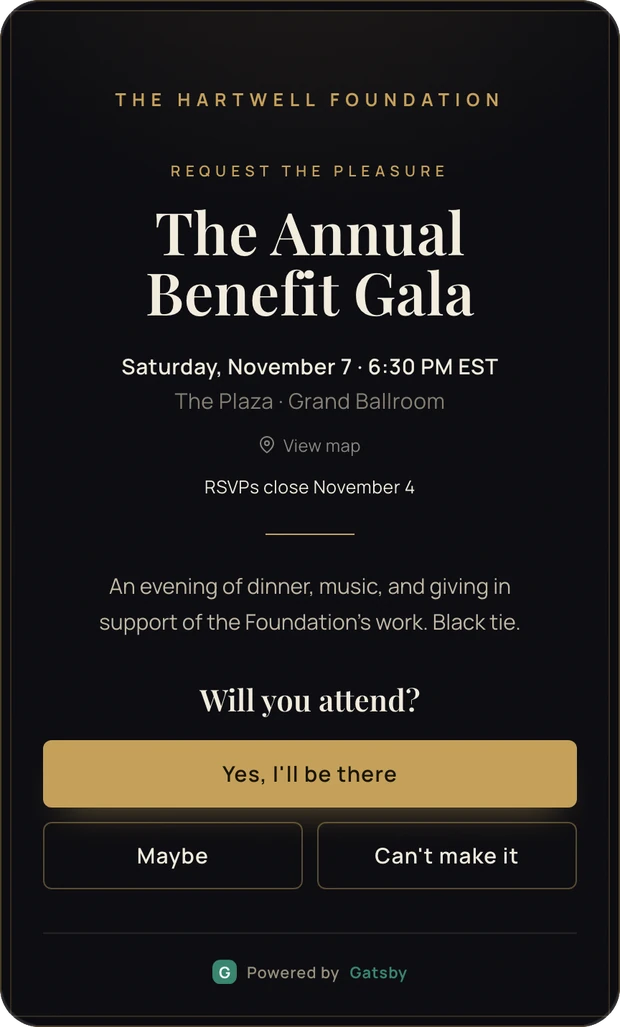
The dinner for twelve never felt worth the full event builder.
So it went to a consumer invite tool, and the guest list went with it. Six months later nobody can tell you who came, and the RSVP never made it onto the contact record. Quick Events gives those events a flow of their own without moving them out of Gatsby.
A separate, narrower flow
Create Quick Event opens a four-step surface instead of the full event builder. Curated choices, no landing-page editor, no campaign setup.
A real event underneath
Same guest profiles, same RSVP statuses, same events list. Quick Events changes the interface, not the underlying event and contact data.
Where to find it. Open Events and Lists and use Create Quick Event beside the usual Create Event button. It’s on for every account, and choosing it changes nothing about the events you already have.
Saving works differently once invitations go out. While you’re building a quick event, every change autosaves as you go, so there’s nothing to click. Once any invitation has been sent, that changes: Details and Design switch to an explicit Save Changes button, and changing the date, time, or location prompts you to send guests a change notice. See Editing after you’ve sent.
Step 1: Details
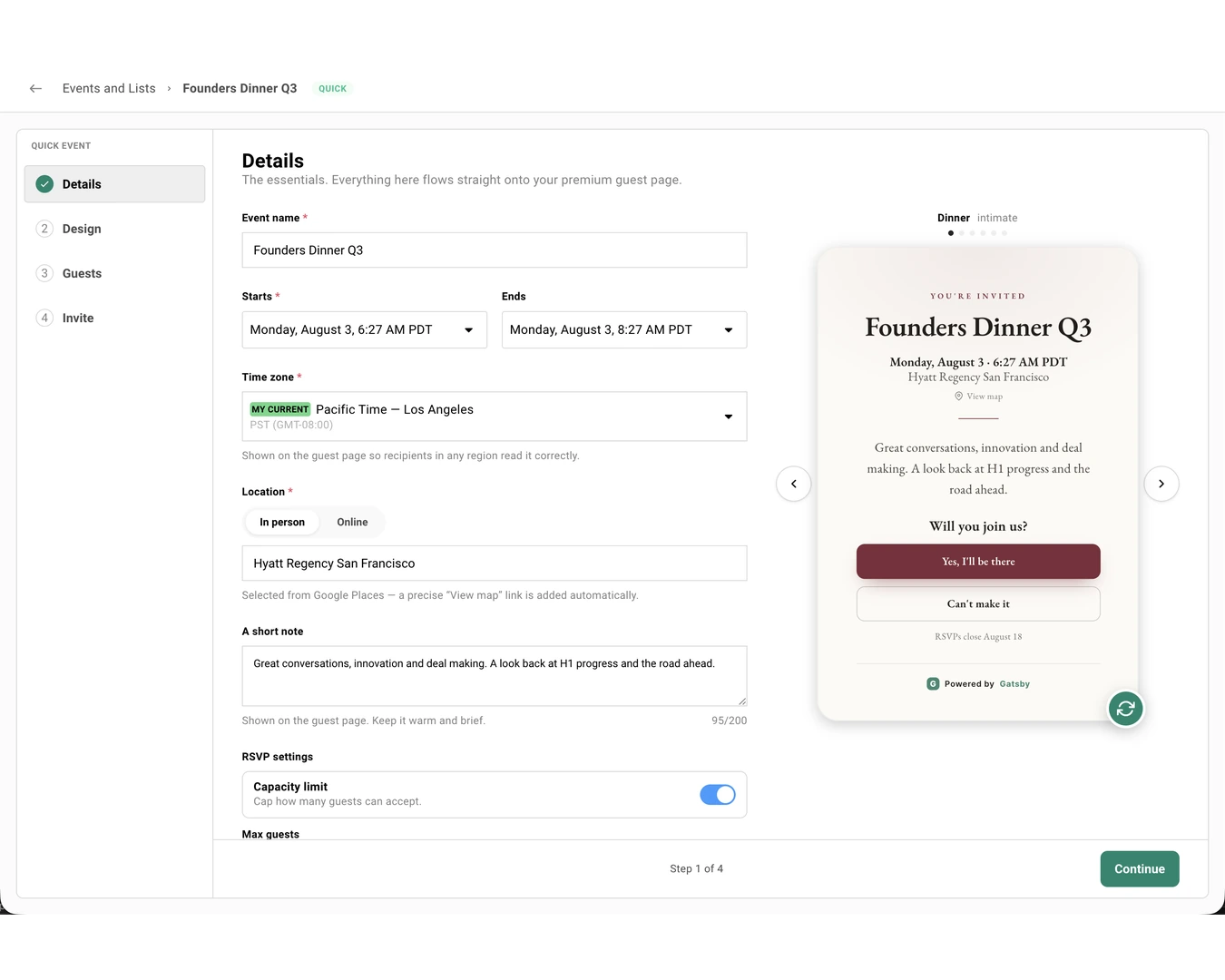
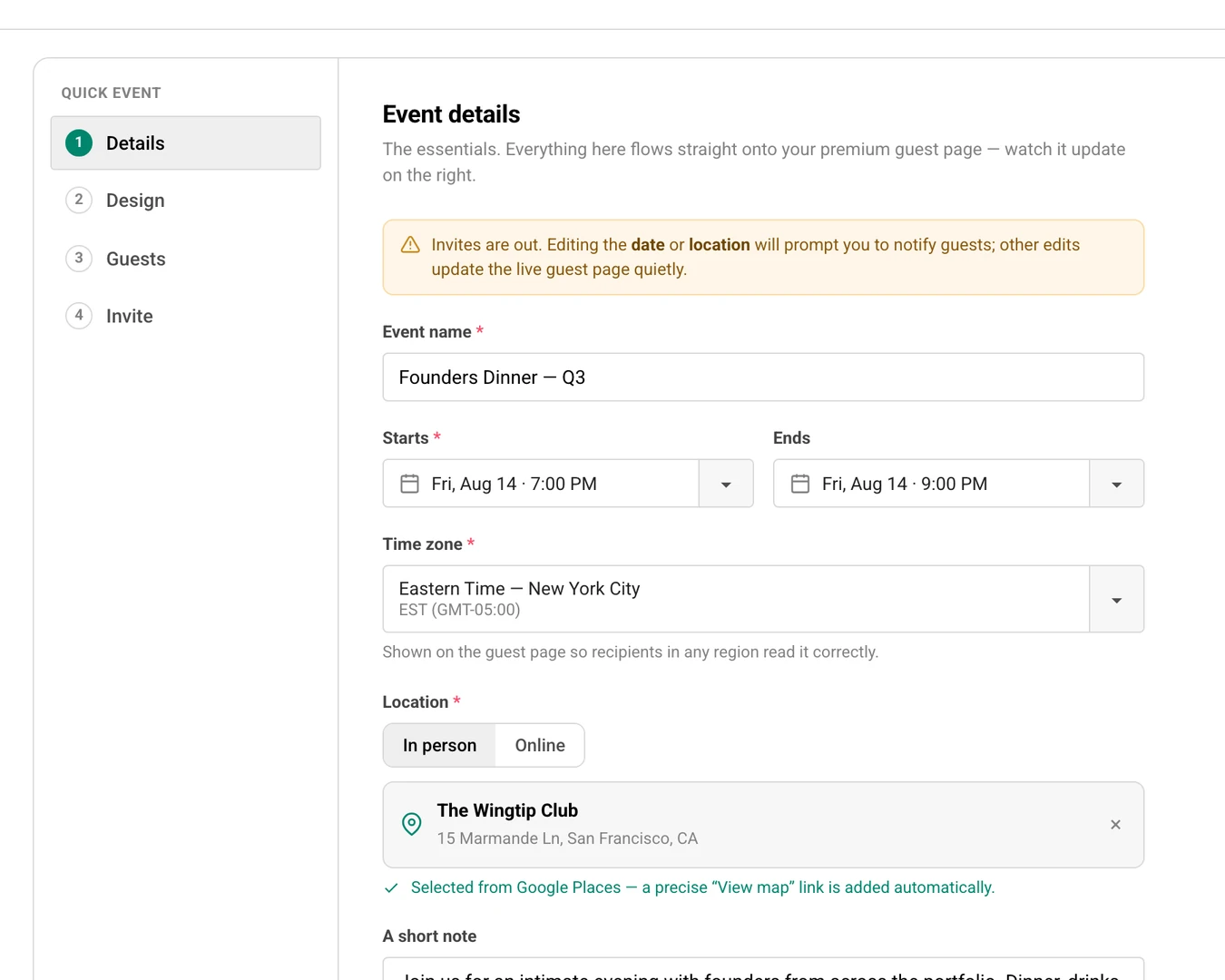
Section titled “Step 1: Details”The essentials, and nothing else. Add an Event name, then check Starts, Time zone, and Location. The start and timezone are filled in for you, and the end time defaults to two hours after the start. A short note, the RSVP settings, and the questions you ask your guests are all optional and all live on this step.
The timezone is shown on the guest page, so someone reading the invitation in another region sees the time correctly.
Filling in the Details Step
-
Enter the Event name. The header updates to the name as you type.
-
Set Starts, and adjust Ends if two hours isn’t right.
-
Pick the Time zone. This is what guests see on the invitation.
-
Choose In person or Online:
In person accepts a venue or location name you type yourself. Pick a result from the address suggestions when you want Gatsby to add a precise View map link on the guest page. Editing a selected place turns it back into a manually entered location and removes that precise map link until you pick another suggestion.
Online takes a Zoom, Google Meet, phone, or plain link. The guest page shows a labeled join link instead of a map.
-
Add A short note if you want one. It takes bold, italic, underline, bullet lists, and links, so a running order or a dress code reads the way you typed it. The counter turns red past 500 characters but never stops you typing.
-
Open Guest questions if you want to ask your guests something as they RSVP. Off by default.
An event is either in person or online. Quick Events doesn’t do both at once.
RSVP Settings
Four controls, grouped together on the Details step. All default off except Maybe.
| Setting | Default | What it does |
|---|---|---|
| Capacity limit | Off | Caps how many guests can accept. Turning it on reveals a Max guests field. Off means unlimited. |
| Waitlist | Off | When capacity is reached, new acceptances go to the waitlist instead of being turned away. |
| RSVP deadline | Off | Stops new acceptances at a date and time. If the waitlist is on, guests can still join it after the deadline. The deadline is shown on the guest page while regular RSVPs are open. |
| Offer Maybe | On | Gives guests a third answer. Turning it off hides the Maybe button and disables its label field in Design. |
Only guests with an Accepted status count against capacity.
Guest Questions
A quick event can ask a few questions at the moment someone RSVPs. Guest questions sits directly under RSVP settings, switched off and collapsed to a single row.
Switch it on and you get four choices. Nothing is pre-selected, so switching the section on doesn’t quietly start asking anything.
| Question | Wording | Where the answer goes |
|---|---|---|
| Company | Gatsby’s own, “Where do you work?” | The contact’s Company field |
| Position | Gatsby’s own, “Your title” | The contact’s Position field |
| Dietary restrictions | Gatsby’s own, “Any dietary restrictions?” | The contact’s dietary restrictions |
| A question of your own | Yours, up to 80 characters | The quick event’s Guests roster |
The first three are Gatsby’s standard questions and carry their own wording, so there’s nothing to write. Only your own question needs a prompt, and guests see it exactly as you type it.
Each selected question gets a Required switch, on when you tick the question. Required questions block the RSVP until they’re answered; optional ones are labeled “optional” on the guest page before anyone starts typing.
Questions stay editable after invitations have gone out, and adding or removing one never sends a change notice.
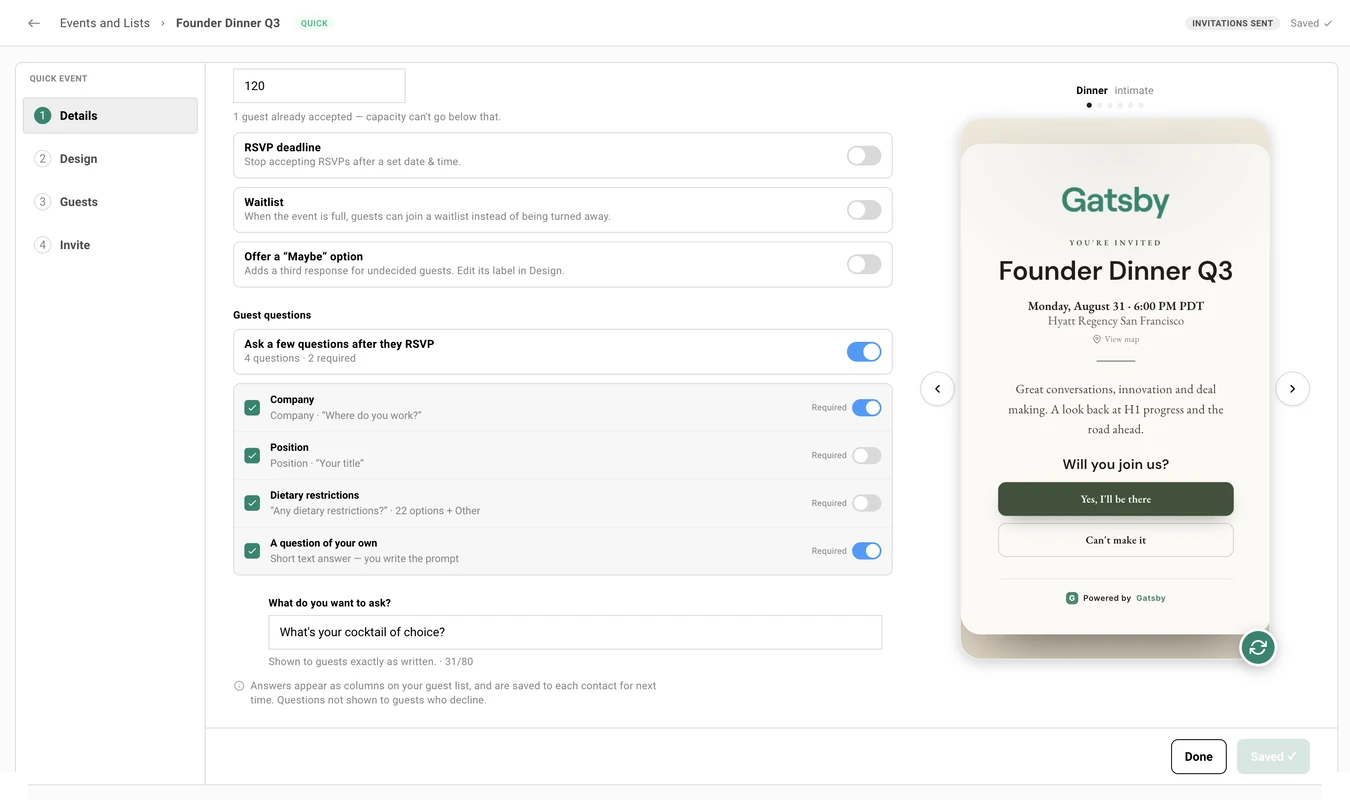
Switching the whole section off clears the questions. Turning it back on starts from nothing selected, so untick a single question if you only mean to drop one.
Step 2: Design
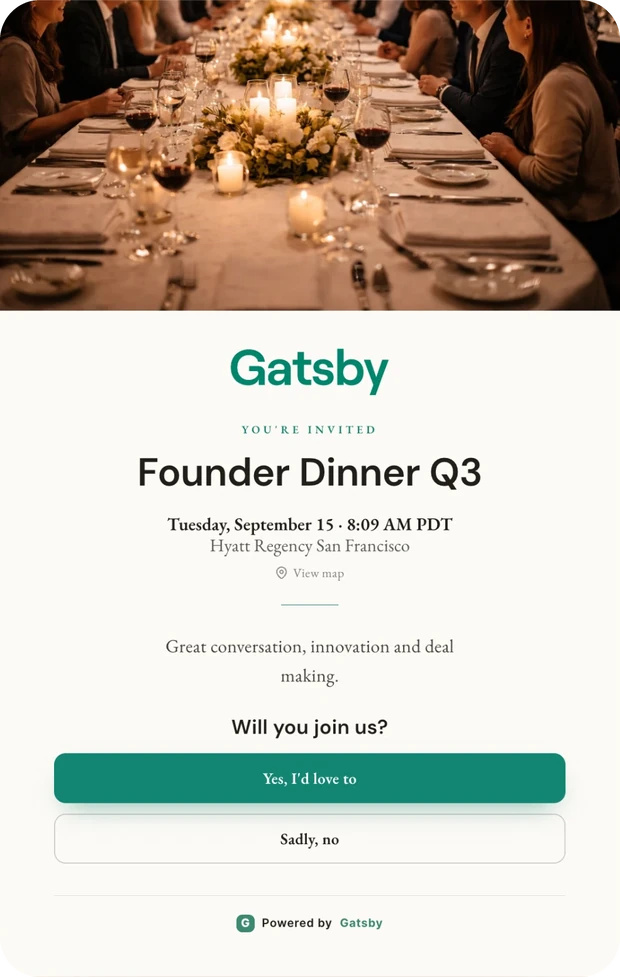
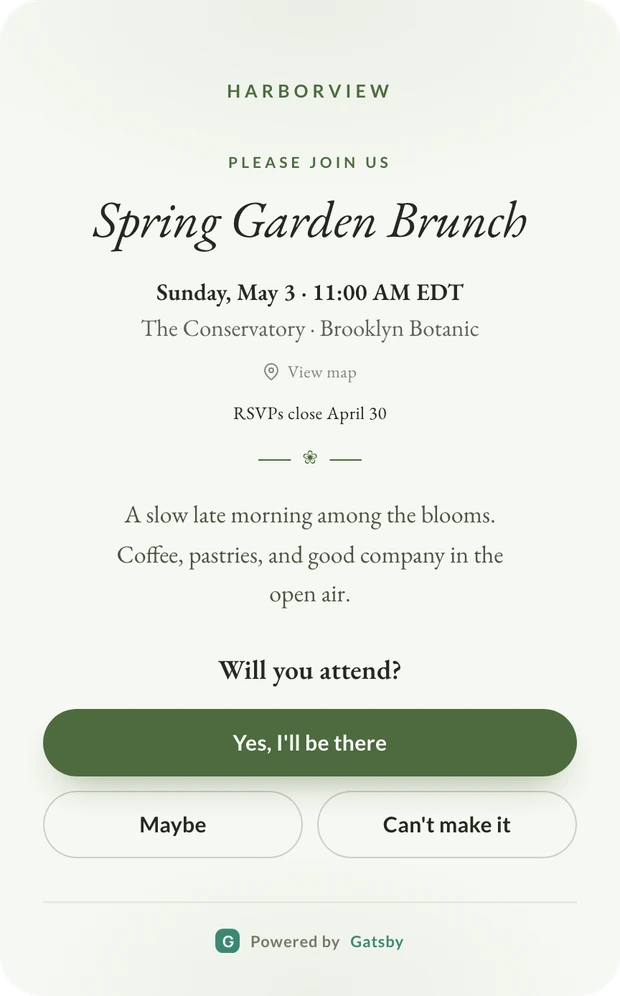
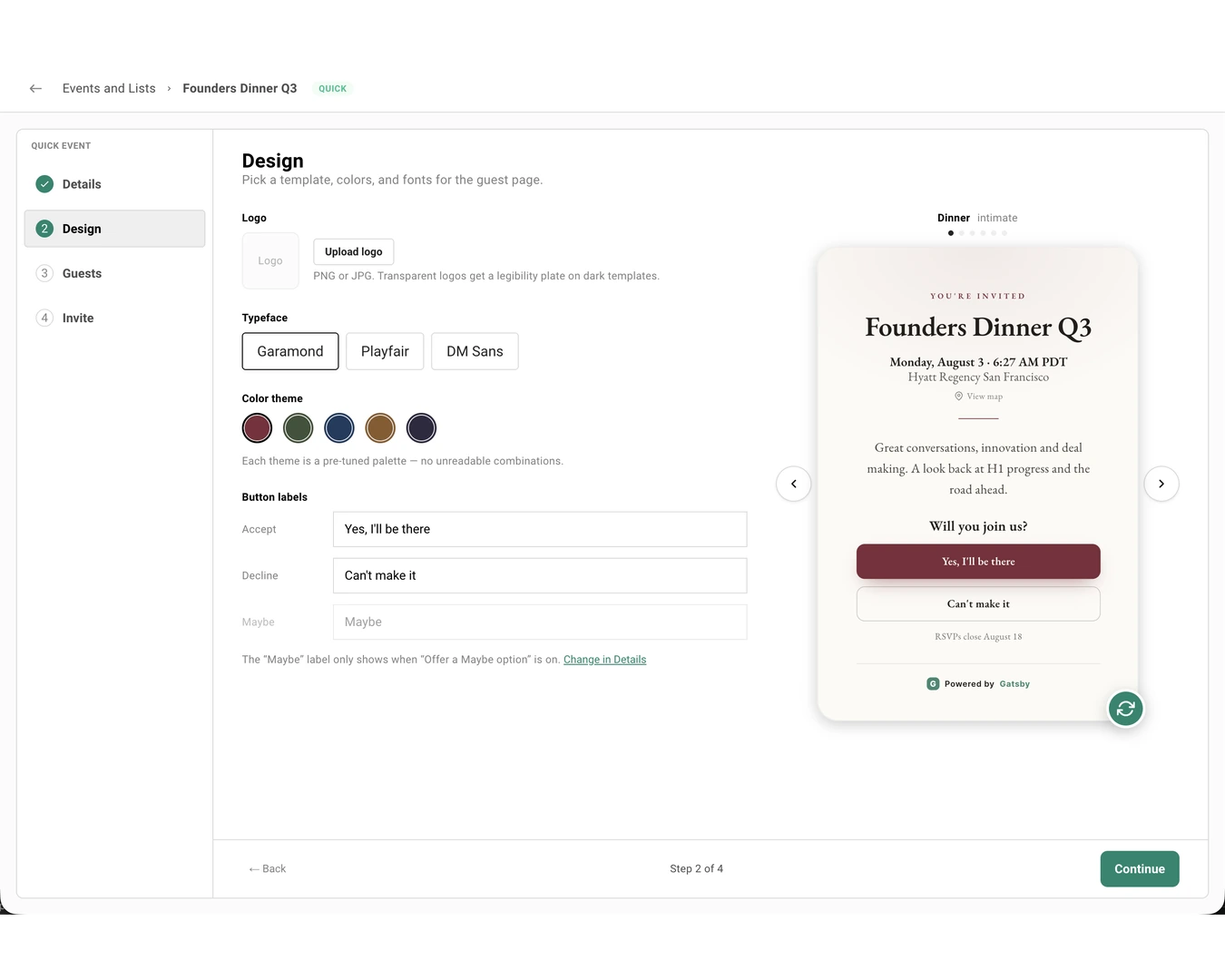
Section titled “Step 2: Design”Pick a template and make it yours. There are six, each with its own typeface set, color palette, and arrival animation: Dinner, Garden, Gala, Soirée, Happy Hour, and Celebration.
You can also put a photograph across the top of the invitation. Banner image is the first control on the step, above Logo, and one photo covers both the guest page and the invitation email.
Typefaces come from the template you picked rather than a free font list, so the shortlist always suits the layout. Colors work the same way with one addition: beside the template’s five pre-tuned palettes there’s a sixth Custom slot for your own brand color, and it stays put when you switch templates.
Choosing a Template
Browse with the ‹ and › arrows beside the preview. The name, its occasion tag, and a row of dots show where you are in the set. The preview updates as you browse.
Once invitations have gone out, the Design step carries a reminder that you’re editing a live event. You can browse templates and preview your changes before using Save Changes to update the guest page.
Adding a Banner Image
Banner image is the first control on the Design step. The same card sits on the Invite step, and both edit one photo. There is one banner per event.
-
Choose Upload banner image and pick a JPG or PNG. Wide photos work best, at least 1200 px across.
-
Frame it. The framing stage opens as soon as the photo loads, since the crop is 2:1 and a centered crop beheads half the photos anyone uploads. Drag along whichever axis has room to spare, up and down on a tall photo, left and right on a wide one.
-
Choose Use this image. Nothing is stored until you do, so Cancel leaves the event exactly as it was.
Once a banner is set, the card offers Replace, Reframe, and Remove. Reframe re-crops from the photo you uploaded rather than from the crop you already saved, so you can move the framing as often as you like and the image never softens.
A photo narrower than 1200 px still sends. Gatsby tells you it may look soft in the email instead of turning it away.
Where the Banner Shows Up
The guest page and the invitation email, and nowhere else.
| Surface | Banner |
|---|---|
| The guest page | Yes, full width across the top of the card, above your logo |
| The invitation email | Yes, flush to the top of the email card |
| Confirmation and waitlist emails | No |
| Follow-ups and change notices | No |
| The link preview image | No. That still comes from the template, your logo, and the event name |
The crop is baked into the image when you save the framing rather than applied when a mail client renders it, so the page and the email frame the photo identically. Outlook ignores the CSS that would otherwise do the cropping.
Removing it removes it from both surfaces. The confirmation says which other surface you’re about to clear, and the choices are Keep banner or Remove from both.
Adding Your Logo
Upload a PNG or JPG. Transparency is preserved and the image is resized for you.
The logo sits in a wide slot near the top of the invitation, under the banner when you’ve added one, and is scaled to fit rather than cropped. On a dark template where a dark logo would disappear, Gatsby puts a subtle backing plate behind it so it stays legible. Remove returns to the no-logo layout.
Typeface, Color, and Button Labels
Typeface is the shortlist belonging to the current template. The title and the RSVP prompt follow your choice.
Color theme sets the accent used on the RSVP button, the date label, and the dividing rules. The first five swatches are the current template’s palette. The sixth is the Custom swatch, for your own color. See Using Your Own Brand Color below.
Button labels rewrite the Accept, Decline, and Maybe copy. “Count me in” and “Can’t make it” read better than Yes and No for some events. Leave a field empty to fall back to the template’s wording.
If Offer Maybe is off, the Maybe label field stays visible but dimmed, with a link back to Details to turn it on.
Using Your Own Brand Color
The last slot in the Color theme row is a Custom swatch. Click it to open the color picker: drag the spectrum, type a six-digit hex, or lift a color off your screen with the eyedropper where your browser supports one. The preview updates as you drag.
Once you’ve picked a color the swatch keeps showing it, so trying a preset doesn’t throw it away. One click on the swatch puts your color back, and a second click reopens the picker to change it. Your color also survives a template switch, so you can browse layouts without losing your branding.
Save it once, reuse it everywhere. The + beside the eyedropper saves the color to your team’s palette under a name you choose. Saved colors are shared with everyone in your organization and appear in Gatsby’s other color pickers too, including landing pages and email. Rename or delete them from the same list.
Your color then carries wherever the template’s accent would go: the guest page, the invitation, follow-ups, the confirmation and waitlist emails, and the link preview image.
Step 3: Guests
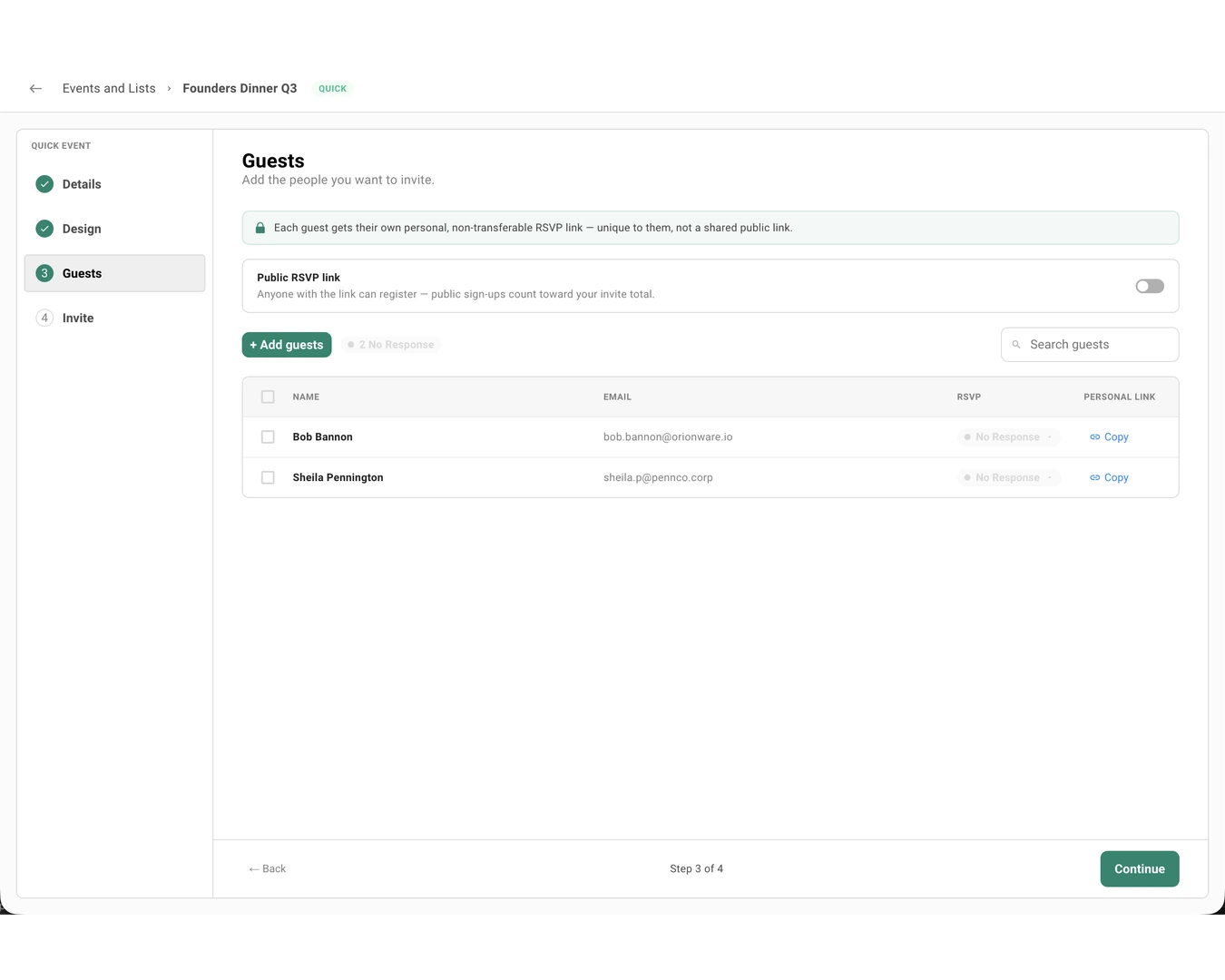
Section titled “Step 3: Guests”Add guests in any of three ways: search your Gatsby contacts, type a new name or email, or upload a CSV.
Every guest gets a personal RSVP link that belongs to them and isn’t transferable. Statuses update live as answers come in, using Gatsby’s normal RSVP vocabulary and colors.
RSVP Statuses
| Status | Color | Meaning |
|---|---|---|
| Accepted | Green | Coming. Counts against capacity. |
| Declined | Red | Not coming. |
| Maybe | Orange | Tentative, if you left Maybe on. |
| Invited | Blue | Invitation sent, no answer yet. |
| Waitlist | Purple | Accepted after capacity was reached. |
| No Response | Grey | No recorded response. This includes guests who haven’t been invited yet and some failed or blocked deliveries. |
The Public RSVP Link
Off by default. Turn it on and you get a shareable link anyone can register through, useful when you want a partner to forward the invitation.
Public sign-ups count toward the same invite total as everyone else. Turn the toggle off and anyone who opens the link sees that it isn’t active, without event details or RSVP controls.
Managing the Waitlist
Guests who join the waitlist show Waitlist in the RSVP column. To move someone off it, open their RSVP status and choose Accepted or Declined. Leave the status as Waitlist to keep them there.
This is manual in this release. Gatsby doesn’t promote people automatically when a spot opens. Changing a waitlisted guest to Accepted sends the Quick Event confirmation email. You can make that change even when capacity is already met; it’s treated as a deliberate override.
Reading Guest Question Answers
If you turned on Guest questions on the Details step, the roster grows one column per question, in the same order the guests saw them. Turn a question off and its column goes away; turn it back on and it returns with the answers intact.
| The cell reads | It means |
|---|---|
| An answer | They answered it |
| Several labels | A dietary answer with more than one selection |
| — | They haven’t answered yet, or left an optional question blank |
| Not asked | They declined, so they were never shown the questions |
Name stays pinned as you scroll sideways. On a phone the guest’s row opens a sheet with an Answers section instead of columns.
Company, Position, and Dietary restrictions are saved to the guest’s contact record. An answer to your own question stays with this quick event and remains available in its Guests roster.
Opening a Guest's Profile
Click a guest’s name to open their contact profile. It opens on the Campaigns tab, which lists every email that guest has been sent: this quick event’s invitation and follow-ups, plus campaigns from your other events. Check it before you write to someone again, so you know whether they already got the last follow-up.
Each quick event email is named for what it is. An invitation reads Invitation · Founder Dinner Q3. A follow-up adds the group it went to, like Follow-up · No RSVP · Founder Dinner Q3.
Edits you save in the profile, like a corrected email address, show up on the roster straight away.
Profiles open from the guest list on a computer. On a phone, the guest’s sheet doesn’t link to the profile. External Collaborators see guest names as plain text and can’t open profiles from here.
Step 4: Invite
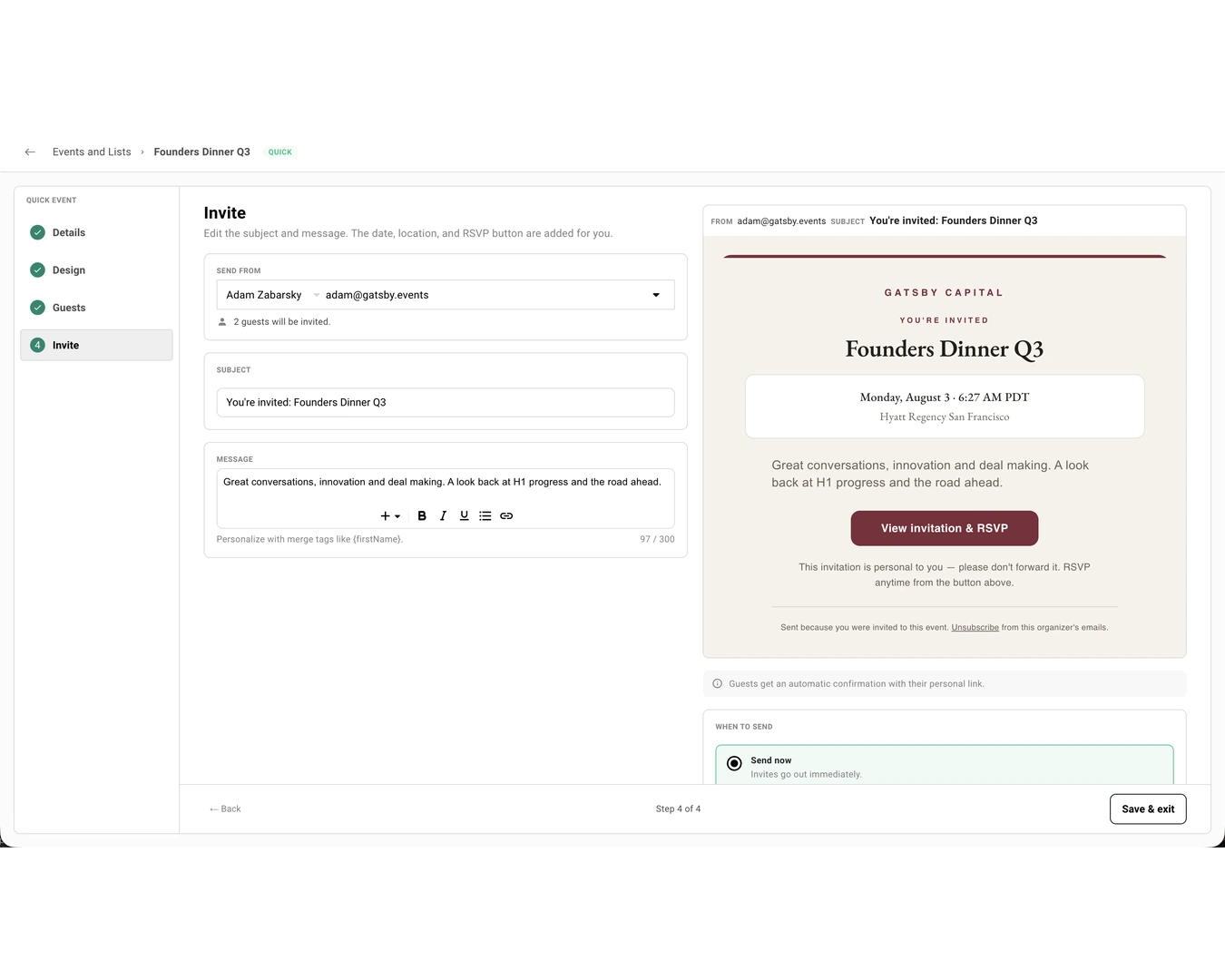
Section titled “Step 4: Invite”One premium invitation that mirrors the guest page you designed, with the banner, logo, accent, and typeface carried across so the email and the page look like the same object.
You write the subject and a short message. The date, location, and RSVP button are added for you, and a live preview sits beside the form as you type.
The Banner on the Invite Step
Banner image appears here as well as on Design, and it is the same photo. Upload, reframe, replace, or remove it from whichever step you happen to be on.
Sending waits for a banner that is still uploading, so an invitation never goes out without the image you just picked. If the photo can’t be resolved at all, Gatsby tells you and sends the invitation without it rather than holding your guests hostage to a decorative image.
Sending, Scheduling, and Testing
-
Set Send from. This is your linked Google, Outlook, or SendGrid address, each labeled with which of the three it is. The number of guests who’ll be invited shows underneath it.
-
Write the Subject.
-
Write the Message. There’s a 750-character limit with a counter, and you can personalize it with merge tags like
{firstName}. Bold, italic, underline, lists, and links are available. There’s no full email editor and no marketing mode. -
Choose Send now, or Schedule and pick a date and time.
-
Optionally Send test to me. A test creates no invitation records and doesn’t touch your guests.
-
Send. Gatsby creates one invitation per guest in a single operation.
You can’t send with an empty guest list. Sending only targets guests who haven’t been invited yet, so nobody gets the same invitation twice.
There’s no way to pick which guests get the invitation. Quick events don’t have the campaigns tool a standard event uses to send to some guests and skip others, so every guest on the list who hasn’t been invited yet receives it. Only add guests you’re ready to invite.
The Confirmation Email
When a guest accepts, they get the Quick Event confirmation email, which matches the invitation.
If your organization has set org-wide default emails under Team Settings, those don’t apply to quick events. Quick Events use their own templates so the confirmation matches the design you picked, and guests who join the waitlist get the matching waitlist confirmation.
Collaborators
Section titled “Collaborators”Every quick event has collaborators from the moment it exists — whoever created it is the organizer. You add and change the rest from inside the wizard, without leaving the step you’re on.
The control sits at the far right of the top bar, past the save indicator, and stays there through all four steps. On a desktop it’s a row of avatars — up to five, then a count for the rest — with a button to open the list. On a phone it’s a single people icon.
Role changes save the moment you make them. They aren’t guest-facing, so they don’t wait for Save Changes and never raise the change-notice prompt.
Adding Someone to a Quick Event
- Open the collaborator control in the top bar. Manage Collaborators opens with everyone on your team listed, the people who already hold a role first.
- Find the person. Typing in the email field at the bottom filters the list as well as starting an invite.
- Set their role to Organizer or Collaborator. No Access takes the event off their list.
- Close it. Anyone newly added is emailed that they have access, and a toast confirms how many.
This works on a draft you haven’t named yet and on an event whose invitations have already gone out. Adding someone doesn’t notify your guests.
Organizer, Collaborator, and No Access
Organizer is full control of the event, including changing who else has access.
Collaborator can work in the event. They can give access to someone who has none, but can’t change anyone who already holds a role, and the role list only offers roles at or below their own — so a collaborator can’t make someone an organizer.
No Access is the default for everyone who hasn’t been added.
Your own row reads (You) and can’t be edited; someone else with the right role has to change it.
These event roles are separate from your organization’s permission tiers. See Team & Permissions for what Super Admins, Admins, Team Members, and External Collaborators can do across the organization.
Inviting Someone Who Isn't on Your Team Yet
The footer reads Invite a member to your team if they don’t appear above. Enter their email, then the first and last name fields appear once the email is valid. Invite stays disabled until all three are filled in.
Someone whose email domain matches your organization joins as a Team Member. Anyone else joins as an External Collaborator, which limits them to the events they’re assigned. Either way they land on this event as a Collaborator.
Whether you can invite at all depends on your organization’s settings — Super Admins control which roles may add team members.
Who Hears About RSVPs
The bell beside a person’s role opens Email notification settings for this event: Initial Public RSVPs, Initial Private RSVPs, and RSVP Updates. Each toggle saves as you set it.
The bell only appears on rows that hold a role, and only for an organizer, an org admin, or the person looking at their own row.
The invitation and the RSVP
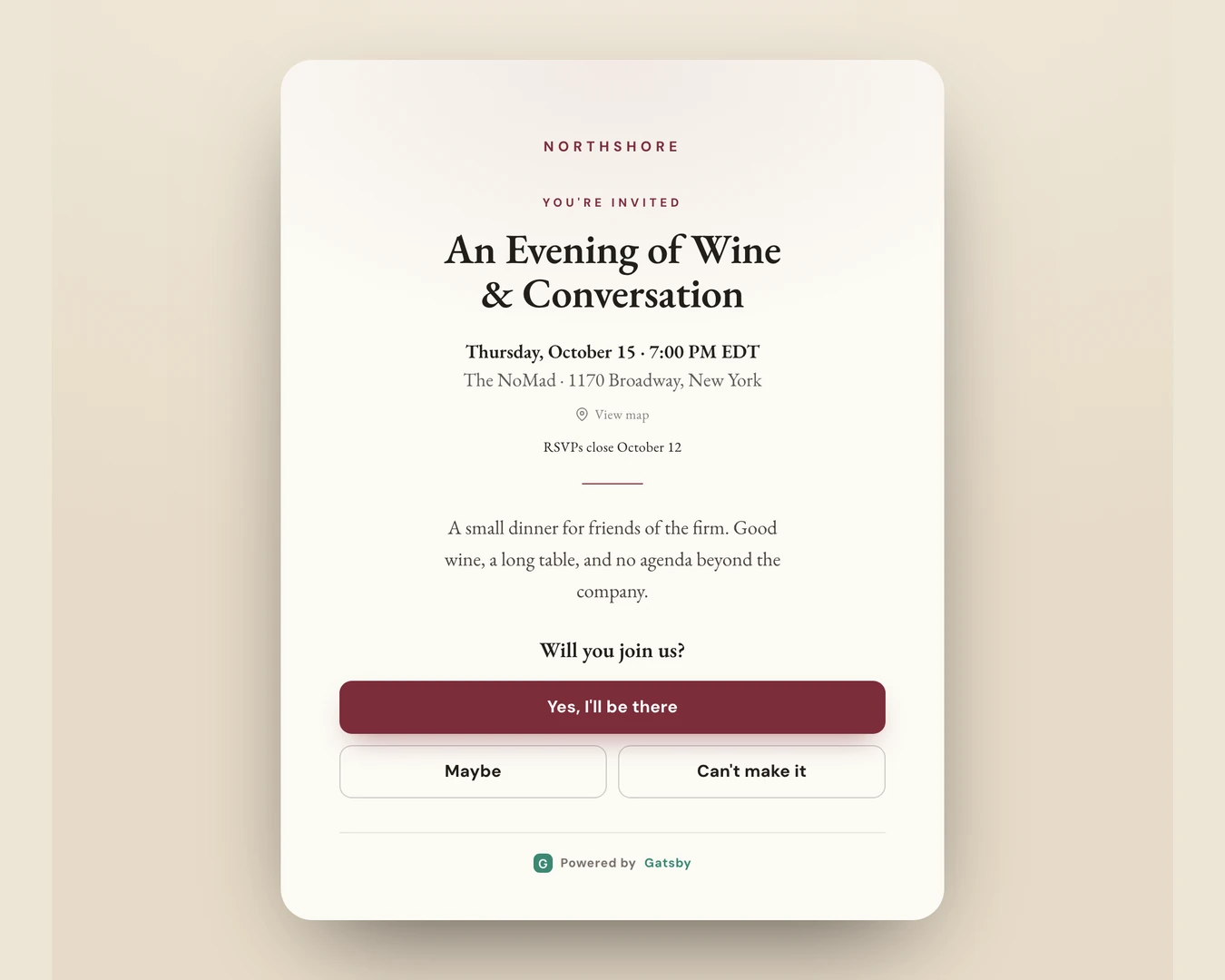
Section titled “The invitation and the RSVP”The page opens with a short arrival animation, then the invitation: your banner photo, your logo, the event name, the date and time with its timezone, the location, and your note. In-person events get a View map link. Online events get a labeled join link instead.
Answering takes one tap. If you’re asking guest questions, they appear on the card itself the moment the guest picks an answer, above a single Submit — no second page, and no separate form to abandon. Personally invited guests can copy their link after answering, and public registrants receive a personal return link in their confirmation email.
Every RSVP State
Open
Accept, Decline, and Maybe, using your labels. If you set a deadline, an “RSVPs close [date]” line appears.
Nearly full
A restrained note that spots are limited. Buttons stay active. Gatsby never shows an exact remaining count or a countdown.
Full, with a waitlist
Accept is replaced by Join the waitlist. Decline stays available and Maybe is hidden. Joining sets the guest to Waitlist and sends the waitlist email.
Full, without a waitlist
An “Event full” message and a single disabled button. No RSVP actions.
Closed
Closed manually, or past the deadline when the waitlist is off. An “RSVP closed” message and no actions. When the waitlist is on, passing the deadline switches the affirmative action to Join the waitlist instead.
The full and closed states apply to returning guests too. Their current response still appears in the acknowledgement band, but the RSVP controls are unavailable until the event is reopened or capacity is available.
The Questions on the Guest Page
Questions only appear after a guest chooses an answer, and only for Yes, Maybe, and joining the waitlist. Someone who declines is never asked anything, on either kind of link.
Required questions carry an accent asterisk; optional ones say “optional”, both visible before the guest starts typing. Submitting with a required question blank is blocked, and the page scrolls back to the question that needs an answer rather than leaving them hunting.
Dietary restrictions is a set of tappable options rather than a dropdown, grouped into Diet and Something to avoid, with an Other… option that opens a text field for anything not on the list. Nothing to scroll through and no keyboard in the way.
On a personal link the guest’s name and email are filled in and locked above the questions, so they can check it’s them before answering. On the public link they type their own name and email as before.
Coming Back Later
A guest who opens their link again doesn’t see a blank invitation. In place of “Will you join us?” the card shows a band in the template’s own colors and typeface, naming them and stating where they stand — You’re going, You said maybe, You’re on the waitlist, or You said you can’t make it — with a line telling them they can change it below.
On a personal link, any questions the guest answered come back filled in and editable, while their name and email stay locked. The arrival animation is skipped on a return visit.
Naming the guest also gives away a forwarded link: open someone else’s personal link and you see their name, not yours.
Personal and Public Links
Personal links are unique to one guest and aren’t transferable. Forwarding one doesn’t give someone else a seat under their own name.
The public link is a separate, optional link for open registration. It only works while the toggle is on.
Both are short and work on your custom domain as well as on gatsby.events. Existing RSVP links for your other events are unaffected.
Accessibility and Motion
The arrival animation can be tapped to skip and plays once per guest. If a guest’s device is set to reduce motion, the page skips straight to its final state.
Delivery, resends, and follow-ups
Section titled “Delivery, resends, and follow-ups”The Invitations step becomes Invitations & Follow-Ups. Delivery statistics sit on one side and a follow-up composer takes the main pane.
Gatsby distinguishes a mailbox that was temporarily unavailable from an address that doesn’t exist, and only offers a resend where a resend can actually work.
Reading Delivery Stats
Four numbers: Delivered, Opened, Accepted, and Failed. When nothing failed, the Failed count isn’t emphasised and no failure list appears.
Failed recipients are listed with a reason:
Temporary failure
A full mailbox or a server that was briefly unavailable. These get a Resend action, and a bulk Resend failed covers the group.
Undeliverable
The address doesn’t exist. These show “Undeliverable, check the address” with an Edit address action and no resend, so you fix the typo instead of sending into a void.
Following Up by Answer
Pick a group and Gatsby writes to exactly those people. Each shows a live count, and a group with nobody in it is disabled rather than hidden.
| Group | Who’s in it |
|---|---|
| Accepted | Everyone coming |
| Declined | Everyone who said no |
| Maybe | Tentative answers |
| Waitlist | Everyone waiting for a spot, when the event uses a waitlist |
| No RSVP | Invited guests who haven’t answered |
Accepted, Declined, Maybe, and No RSVP each have a suggested note you can load in one click, edit, and send. Accepted also has a post-event thank-you. The Waitlist group starts blank so you can write the message that fits the situation.
Follow-ups use the event’s design and include a calendar invite unless your organization has disabled calendar attachments. Following up never changes anyone’s RSVP status.
Branded Follow-Ups
Every follow-up is wrapped in the event’s design, using the logo, typeface, and colors from your quick event. A live preview beside the composer shows how the message will look before you send it.
Inviting People You Added Later
Adding guests after the first send gives you a Send to new guests action covering only the people who haven’t been invited. It’s deliberately separate from follow-ups and from resending failures, so there’s no way to accidentally re-invite the whole list.
Editing after you’ve sent
Section titled “Editing after you’ve sent”Details and Design stay editable, with an amber reminder that invitations are already out. Changes commit when you press Save Changes, not as you type.
Because the guest page reads live data, a saved edit is visible to anyone who opens their link. Emails already delivered keep the details they were sent with.
Changing the Date, Time, or Location
These are the changes guests need to know about, so Gatsby asks.
Saving a new start date or time, timezone, or location shows a prompt with the old and new details side by side. You can Send change notice to everyone already invited, whatever their answer, or Skip. Changing only the end time doesn’t open this prompt.
Skipping is a real choice, not a trap. The guest page still updates either way. Use it when you’ve already told people directly.
Design changes carry the same live-event caution and go live when you press Save Changes, without opening a change-notice prompt. That covers the banner: add, reframe, or remove it and the guest page updates for anyone who opens their link, while invitations already delivered keep the image they were sent with.
Setting Defaults for Your Team
Admins can set a house style once under Team Settings » Event Defaults, in Default Quick Event Design: template, logo, typeface, color, and button labels. New quick events start from it, and anyone can still change any of it per event.
The Custom slot is here too, and here it holds your organization’s brand color. Set it and new quick events open with it already selected, so nobody has to paste a hex to stay on brand.
The banner isn’t part of the house style. It’s a photo of one event, so it belongs to that event, and every quick event starts without one.
Changing the default doesn’t alter quick events that already exist. If no default is set, new events start from Gatsby’s.
The same page holds your organization’s Default Emails, which apply to standard events but not to quick events.
Common Questions
Section titled “Common Questions” Do I need Quick Events turned on?
No. It’s available to every Gatsby customer today. Look for Create Quick Event next to Create Event in your events list. If you don’t see it, refresh once, since an older browser tab can hold a stale menu.
Can a quick event do seating, check-in, or ticketing?
No. Quick Events covers invitations, RSVPs, capacity, waitlists, a few questions at the RSVP, and follow-ups. Seating charts, name badges, door check-in, paid ticketing, documents, tasks, full registration forms, and post-event surveys are full-event features. For an event that needs those, create a standard event.
Can other people on my team work on a quick event?
Yes. Open the collaborator control at the right of the wizard’s top bar and set anyone on your team to Organizer or Collaborator. Role changes save straight away and nothing is sent to your guests. See Collaborators.
Why don't I see the collaborator control?
External Collaborators don’t get it. They can work in the events they’ve been assigned, but changing who else has access is limited to your own team.
Can I ask my guests questions when they RSVP?
Yes, up to four. Switch on Guest questions on the Details step and pick from Company, Position, Dietary restrictions, and one question of your own. Guests answer on the invitation itself, right after they choose their answer, and each question can be required or optional.
It’s a short set on purpose, not a form builder. The four questions can’t be reordered, there’s no branching or conditional logic, and only the one custom question has wording you write. For anything larger, use a standard event with a registration form.
Where do the answers to guest questions end up?
Company, Position, and dietary restrictions land on the guest’s profile fields, so those answers are available anywhere you use that contact. Your own question stays with the quick event instead of creating an organization-wide contact field.
You’ll see every selected question as a column on the quick event’s Guests roster. If you rename your own question, the column keeps its existing answers under the new wording.
Can I convert a quick event into a full event?
Not in this release. If an event grows past what the quick flow covers, create a standard event for it. Your contacts and their history are shared across both, so nothing about the guests has to be rebuilt.
Do plus-ones work on quick events?
No. Capacity counts one seat per accepted guest. If you need plus-ones, guest-of-guest registration, or more than the four guest questions, use a standard event.
How do I see which invitations and follow-ups my guests received and when?
Click a guest’s name on the Guests step. Their contact profile opens on the Campaigns tab, listing the invitation and every follow-up sent to them. Each row shows how long ago that email last changed status, so an invitation the guest opened shows when they opened it. See Opening a Guest’s Profile.
Do RSVPs from a quick event reach the contact record and our CRM?
Yes. A quick event is a real Gatsby event on your real contacts, so RSVP history and the standard Company, Position, and Dietary restrictions answers update the contact and can flow through your existing CRM integrations. An answer to your own question stays on the quick event’s Guests roster rather than becoming a CRM contact field.
Can I create a quick event on my phone?
Yes, the whole flow. All four steps work on mobile web, with a segmented Edit / Preview toggle instead of a side-by-side preview and a step picker in place of the desktop sidebar. Sending invitations, reading delivery stats, and writing follow-ups all work the same way.
What does a quick-event link look like when someone shares it?
Gatsby generates a preview image for every quick event from the template you picked, so a link pasted into Slack, iMessage, or email unfurls as your invitation rather than a generic Gatsby graphic. It carries your logo, or your organization’s name if you haven’t added one, and the event name.
There’s nothing to configure and no image to upload, and a banner photo doesn’t replace it. It refreshes when you change the event name, template, color, or logo. The date and location aren’t drawn on the image on purpose, since messaging apps cache an unfurl and a cached picture of a changed date would be wrong rather than merely stale; the date goes in the link’s description text instead, which apps re-fetch.
Can I put a photo on the invitation?
Yes. Banner image on the Design step takes a JPG or PNG and runs it across the top of the guest page and the invitation email. Wide photos work best, and anything at least 1200 px across stays sharp.
The crop is 2:1, so the framing stage opens as soon as your photo loads and you drag it to the part you want. One photo covers both surfaces, and you can replace, reframe, or remove it at any point, including after invitations have gone out.
Does the banner go on the confirmation email or the follow-ups?
No. The banner is on the guest page and the invitation email. Confirmation, waitlist, follow-up, and change-notice emails carry your template, logo, and accent color, but not the photo. The link preview image is unchanged too, so a link pasted into Slack still unfurls the generated card rather than your photo.
Can our team set a default banner for every quick event?
No, and that’s on purpose. Team Settings » Event Defaults covers template, logo, typeface, color, and button labels, which are all house style. A photograph belongs to one event, so a default would put last year’s dinner on every new invitation until somebody noticed.
Can I use my own brand color instead of the template's?
Yes. The Color theme row on the Design step ends with a Custom swatch that opens a color picker, and the color you set there survives switching templates and carries into the invitation and the emails. Admins can set one for the whole team under Team Settings » Event Defaults so new quick events start on brand.
Typefaces and layouts stay template-bound; the accent is the one thing you can bring yourself. For full control over type and layout, use a standard event with a custom landing page.
Can I remove the Powered by Gatsby mark from the guest page?
No. It appears on every quick-event page and always in Gatsby’s own green, never your accent color. For a fully unbranded page, use a standard event with a custom landing page on your own domain.
Why don't my organization's default emails apply?
Quick events use their own confirmation and waitlist emails so they match the design you picked. This is intentional and only affects quick events. Your defaults still apply to every standard event.
Does someone get promoted automatically when a spot opens?
Not in this release. Waitlisted guests stay put until an organizer changes their RSVP status from Waitlist to Accepted or Declined.
What happens if someone forwards their RSVP link?
A personal link is tied to one guest and isn’t transferable, so forwarding it doesn’t create a seat for someone else under their own name. If you want people to be able to pass the invitation along, turn on the public RSVP link.
Can I duplicate a quick event?
Yes, and the copy is a quick event too, keeping its design and its capacity, waitlist, and deadline settings. Check In Guests doesn’t appear in a quick event’s menu, since check-in isn’t part of Quick Events.
Can a quick event send text messages?
No. Texting, including the free SMS Auto-Reminder, works on standard events only.