
Overview
Newsletters
Send recurring marketing newsletters from Gatsby, to a subscriber list you build from your guest lists, events and tags. A paid add-on with its own sending infrastructure, kept separate from your event email.
Your contact list lives in Gatsby. Your newsletter lives somewhere else.
So twice a month someone exports a CSV, uploads it to Mailchimp, and the two lists start drifting apart the same afternoon. The person who unsubscribed over there is still getting invited over here. The guest who came to three dinners this year never made it onto the list at all. Newsletters puts the send where the contacts already are.
A newsletter is a publication
”The Weekly Wrap-Up” is a newsletter. It has its own subscribers, its own history, and its own numbers.
A campaign is one send
Each email you send is a campaign inside that newsletter. You write it, preview it, and send or schedule it.
Built from your lists and events
Add subscribers from an event’s guest list, a Gatsby list, or a tag. The guest list from March’s dinner is a starting audience for April’s campaign.
Finding it
Section titled “Finding it”Newsletters sits in the main sidebar, under Contacts. It appears once Gatsby turns Newsletters on for your organization, and it has two tabs at the top:
Newsletters lists your publications. Subscribers shows everyone subscribed to any of them, in one place.
Down the left of the Newsletters tab: My Newsletters (the ones you’re a collaborator on, and the default view), All Newsletters, and Archived.
Once it’s on, Team Members work in Newsletters the same way they work in the rest of Gatsby. External Collaborators don’t see it. Sending setup in Team Settings → Newsletters is for Admins and Super Admins.
Before your first send
Section titled “Before your first send”Three things have to be true before a campaign can go out, and all three live in Team Settings → Newsletters. Newsletter Settings walks through each one.
A sender identity
Your company’s legal name and physical mailing address. Both render in the footer of every newsletter, because CAN-SPAM requires them. Gatsby prefills them from your billing address, and you can edit them if the brand you send under differs from the entity that pays the invoice.
An authenticated sending domain
Newsletters send from your own domain, not a Gatsby one. Authenticating it means adding five CNAME records at your DNS provider. Three of them are what receiving mail servers check, and the domain reads Authenticated once those resolve. The other two brand the links in your newsletters, and it’s easiest to add all five in one sitting.
A from address on that domain
The specific address the newsletter comes from. Gatsby verifies it when you save. Sends stay paused until one is set.
Creating one
Section titled “Creating one” Starting a newsletter
-
Open Newsletters from the sidebar.
-
Click Create Newsletter.
-
Fill in the Newsletter name. Subscribers see it in the footer of every campaign and on the unsubscribe pages, as the reason they’re receiving it, so write it the way you’d say it out loud.
-
Optionally, fill in an Internal name. Only your team sees it, so use it to tell similar newsletters apart, like Investor Update (LPs) and Investor Update (Founders). Leave it blank and the internal name matches the newsletter name.
-
Save. Gatsby drops you on the new newsletter’s Campaigns tab.
A new newsletter starts with no subscribers and no campaigns. Add subscribers first. See Newsletter Subscribers.
What's on the list
One row per newsletter: its Name, the Collaborators working on it as avatars, its Subscribers count, and when it was Last Updated. Search by name across the top.
The row menu holds View, Duplicate, Archive, and Delete.
Inside a newsletter
Section titled “Inside a newsletter”The header carries the newsletter’s internal name and its current subscriber count. The menu beside the name holds everything that acts on the newsletter itself: Rename, Duplicate, Archive, and Delete Newsletter. Four tabs underneath:
| Tab | What’s there |
|---|---|
| Campaigns | Every campaign, sent and unsent, with delivered, opens, and clicks per row. Where you start a new one. |
| Subscribers | Who receives it, with subscription and deliverability status on each person. |
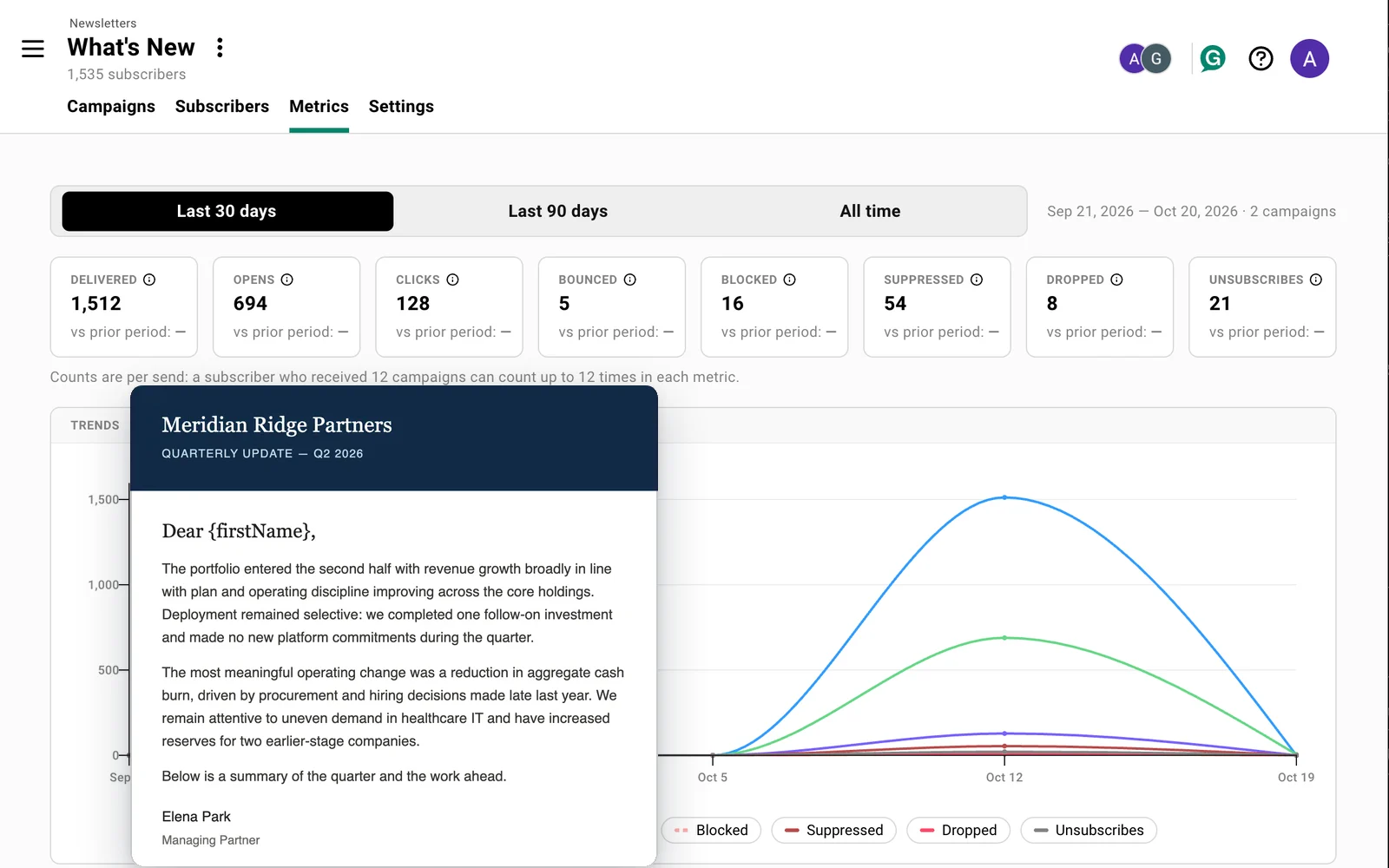
| Metrics | The same numbers rolled up across every campaign, over 30 days, 90 days, or all time. |
| Settings | The newsletter’s two names, plus Archive and Delete. |
Archiving and deleting
Section titled “Archiving and deleting” Archive
Archive from the menu on the newsletter, or from its row menu in the Newsletters list. The newsletter moves to the Archived view and out of your way. Its subscribers and its history stay intact.
Use this for a publication you’ve stopped sending but don’t want to lose.
Delete
Delete Newsletter, from the same menu. Deleting removes the newsletter and its campaign history.
It does not delete anyone’s contact record. A subscriber is a contact with a subscription attached, and deleting the newsletter removes the subscription, not the person. Their event history, their dietary restriction, and everything else on the contact stays where it is.
Rename
Rename from the menu opens the Settings tab with both names ready to edit.
The Newsletter name is what subscribers see in the footer of every campaign, so changing it changes what they read on the next send. The Internal name only changes what your team sees in Gatsby. Internal names are unique across your organization.
Duplicate
Duplicate, from either menu, creates a second newsletter set up like the first. Useful when you’re splitting one publication into two, or standing up a sister letter for a different audience.
Common Questions
Section titled “Common Questions” What has to be set up before the first send?
Three things, all in Team Settings → Newsletters and all Admin-only: a sender identity (your legal name and mailing address, which the footer prints), an authenticated sending domain, and a from address on that domain. Sends stay paused until the from address is set. See Newsletter Settings.
How do I add subscribers to a newsletter?
Open the newsletter, go to Subscribers, and use + Add Subscribers. You can pull from an event’s guest list, a Gatsby list, or a tag, type people in one at a time, or bring a CSV with Import CSV. You can also select people on any guest list or the Contacts page and click Add to Newsletter in the action bar. See Newsletter Subscribers.
How do I design my newsletter?
You bring the HTML. Paste it into the campaign or upload an .html file, and Gatsby adds your sender identity, the compliance footer, the unsubscribe link, mail merge and link tracking around it. There’s no drag-and-drop editor yet.
If you’re starting from nothing, the Skill & Prompt Gallery has four newsletter layouts with the prompts to generate them: a monthly community letter, a quarterly LP update, a curated links digest, and a plain branded shell. See Newsletter Campaigns for what happens to your HTML once it’s in.
How do I send a campaign, and can I schedule it?
From the newsletter’s Campaigns tab, Create Campaign. Name it, write a subject, add your HTML, and Save draft. Saving unlocks Preview and Send test email, and Next opens the send flow: pick who gets it, then Send now or Schedule. See Newsletter Campaigns.
I just sent something wrong. Can I stop it?
Usually most of it. Gatsby sends to a tenth of your list first, up to 300 people, and holds the rest for ten minutes. Stop sending on the campaign report keeps back everyone who hasn’t received it yet, and from there you can fix the problem and resume, or decide the rest never goes. Mail already delivered can’t be recalled. See After you hit send.
How do I tell whether it worked?
Every sent campaign has its own report, and the newsletter’s Metrics tab rolls the same eight numbers up across every campaign over 30 days, 90 days, or all time. See Newsletter Campaigns.
What does it cost?
An annual fee for the add-on, plus a per-subscriber rate charged each quarter, counted once per person per year rather than once per campaign. The first 250 subscribers are included, and that allowance starts over on 1 January. Sending on Gatsby’s own SendGrid account is a separate yearly charge you avoid by connecting your own key. While Newsletters is in limited release, Gatsby turns it on for each pilot organization. Email help@gatsby.events to ask about joining. See Plan & Billing for the current rates.
How is this different from an event campaign?
An event campaign is correspondence about a specific event: the invitation, the confirmation, the reminder. It goes to that event’s guest list and it sends on your event email infrastructure.
A newsletter is marketing. It goes to people who subscribed to it, it sends on separate infrastructure with its own sender identity, and it carries a required unsubscribe link. The two keep separate opt-out lists on purpose. See Campaigns & Invites for the event side.
If someone unsubscribes, do they stop getting event email?
No. Unsubscribing from a newsletter stops that newsletter. It doesn’t touch invitations, RSVP confirmations, or reminders, and the unsubscribe page tells the reader so in as many words.
A subscriber can also opt out of every newsletter your organization sends, in one click from the same page. That still leaves event email alone.
Can we send outside the US?
You can send to subscribers anywhere. The sender has to be US-based: activation requires a US billing and postal address, and Team Settings says so on the sender identity card. International sender support is coming later.
Does the newsletter affect our event email reputation?
That’s exactly what the separation is there to prevent. Newsletter sending runs on its own credentials and its own sending path, and the code that sends event email can’t reach the newsletter ones. A rough newsletter send doesn’t drag your invitations down with it.
Who can work on a newsletter?
Admins and Super Admins set up sending in Team Settings. Everyone with access to the Newsletters area can create newsletters, manage subscribers, and write campaigns. See Team & Permissions.